Introduction
A computer that suddenly refuses to start can be frustrating, especially when you suspect the motherboard is the problem. Before buying a replacement, however, it is worth checking a few common causes.
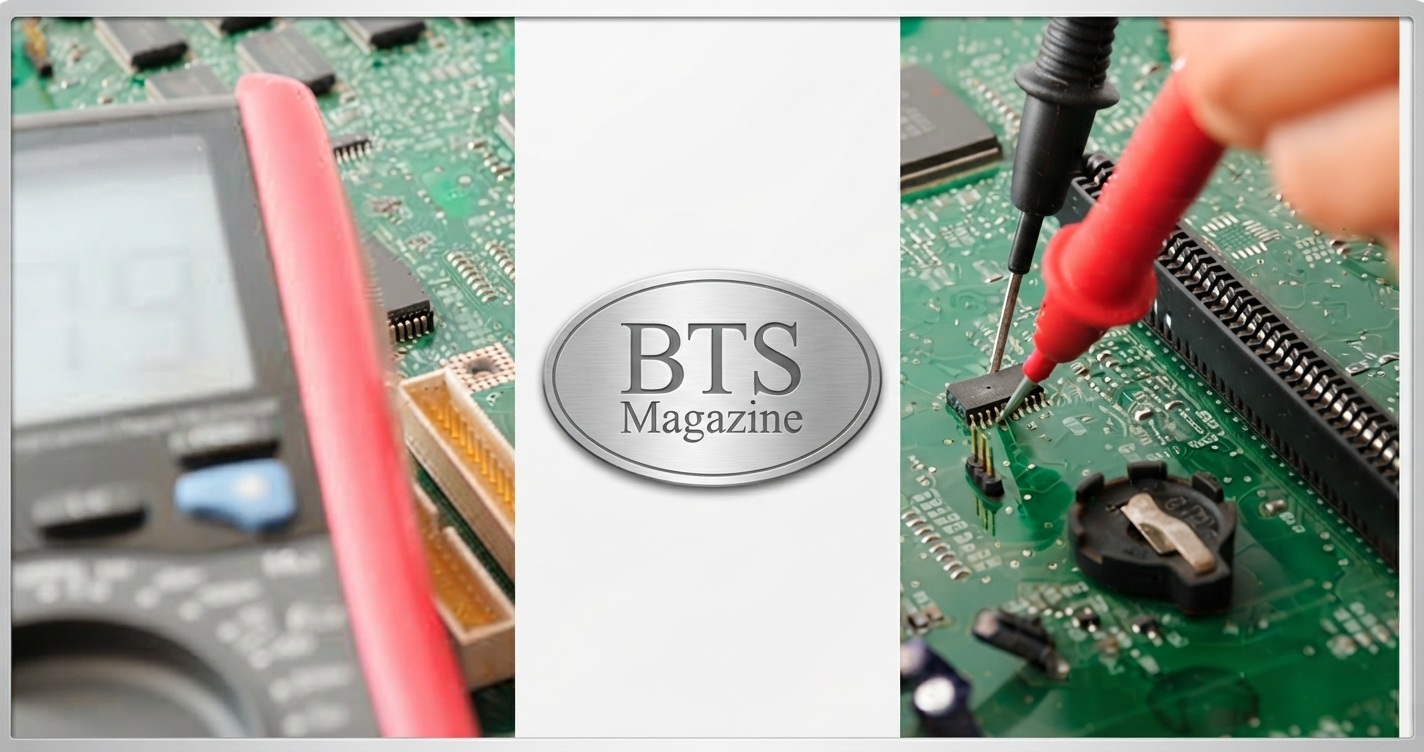
Motherboard repair involves finding and fixing faults on the main circuit board of a computer. Some problems are simple, such as loose cables or incorrect BIOS settings. Others, including damaged power circuits or burned components, may require professional repair.
This guide covers 10 common motherboard problems, how to identify them, and practical fixes you can try safely.
What Is Motherboard Repair?
Motherboard repair is the process of diagnosing and fixing faults on a computer’s main circuit board. Repairs can range from reconnecting cables and resetting BIOS settings to replacing damaged capacitors, ports, or other electronic components.
The motherboard connects major hardware such as the CPU, RAM, storage, graphics card, and power supply. A small fault can therefore cause anything from startup problems to complete system failure.
For basic background, you can also learn about the motherboard on Wikipedia.
Why Is Motherboard Repair Important?
A faulty motherboard can make a perfectly good computer appear completely dead. Repairing the board may save money compared with replacing the entire system.
Motherboard troubleshooting is also important because the motherboard is not always the actual cause of a PC problem.
For example, a computer that does not turn on could have:
- A failed power supply
- Loose power connections
- Faulty RAM
- A damaged CPU
- BIOS problems
- A short circuit
- A defective motherboard
Correct diagnosis should come before replacing expensive hardware.
Key Benefits of Motherboard Repair
Choosing motherboard repair instead of immediate replacement can offer several benefits.
1. Lower Cost
A simple repair may cost much less than purchasing a new motherboard or computer.
2. Less Electronic Waste
Repairing usable hardware keeps electronic components out of landfills and extends the life of the computer.
3. Preserve Existing Components
If your motherboard supports your current CPU, RAM, and storage, repairing it can allow you to keep your existing setup.
4. Find the Real Problem
Good motherboard diagnostics can reveal whether the board is actually defective or another component is causing the issue.
10 Common Motherboard Problems and Easy Fixes
1. Computer Won’t Turn On
This is one of the most common symptoms people associate with motherboard failure.
Before assuming the board is damaged, check the power cable, wall outlet, PSU switch, and motherboard power connectors.
Easy fix:
- Turn off and unplug the computer.
- Check the 24-pin motherboard connector.
- Check the CPU power connector.
- Make sure the PSU switch is on.
- Try another compatible power cable or outlet.
If there are still no signs of power, the PSU or motherboard may need professional testing.
2. PC Turns On but Shows No Display
Fans may spin while the monitor remains completely blank. This does not automatically mean the motherboard is broken.
Start by checking the display cable and monitor. Then reseat the RAM and graphics card if your system has one.
Tip: If your motherboard has diagnostic LEDs or beep codes, check the manual to understand what the indicator means.
3. RAM Is Not Detected
Incorrectly installed or faulty RAM can cause boot failures, crashes, or a blank screen.
Power the PC down and disconnect it from the electrical supply. Remove and reinstall the memory modules carefully.
Try booting with one RAM stick at a time if your computer has multiple modules.
If one module works while another does not, the problem may be related to the memory rather than the motherboard.
4. BIOS or UEFI Problems
The BIOS or UEFI firmware helps the computer initialize hardware before the operating system loads.
Incorrect settings can sometimes prevent normal startup.
Easy fix: Reset the BIOS/UEFI to its default settings. Many motherboards provide a CMOS reset jumper or button. Some systems also have a removable CMOS battery.
Always follow your motherboard manufacturer’s instructions before performing a BIOS reset or firmware update.
5. USB Ports Stop Working
A dead USB port may be caused by software, a damaged port, or an electrical problem.
First, test another USB device and check whether other ports work.
If only one physical port fails, inspect it for bent or damaged contacts. Do not force a connector into a damaged port.
For several non-working ports, check drivers and BIOS/UEFI settings before assuming the motherboard needs repair.
6. Computer Keeps Restarting
Unexpected restarts can come from overheating, unstable RAM, a failing PSU, or motherboard power problems.
Check CPU temperatures and make sure the cooling system is working correctly.
Also inspect the motherboard for obvious physical damage, such as burned areas or leaking components.
If the restarts continue after testing the PSU, RAM, and temperatures, professional diagnosis may be necessary.
7. Motherboard Overheating
Motherboards contain voltage regulators and other components that produce heat.
Excessive dust, poor airflow, or a failing cooling system can contribute to overheating.
Try these steps:
- Clean dust from the PC case.
- Improve airflow.
- Make sure case fans work.
- Check CPU cooling.
- Keep cables away from major airflow paths.
Never open or modify a power supply yourself. Capacitors inside electrical equipment can retain dangerous voltage.
8. Damaged Capacitors or Components
Older or damaged motherboards may develop faulty capacitors or other electronic components.
Signs can include:
- Swollen components
- Leaking material
- Burn marks
- Unusual electrical smells
- Random crashes or startup failures
Component-level motherboard repair requires proper electronics tools and knowledge.
If you see burned or physically damaged components, stop using the computer and consider professional repair.
9. No Network or Audio Function
A motherboard’s built-in Ethernet, Wi-Fi, or audio features may stop working because of drivers, BIOS settings, hardware failure, or operating-system issues.
Start with software troubleshooting.
Update the appropriate drivers, check BIOS/UEFI settings, and test another device or connection.
If the feature remains unavailable across different operating systems or after a clean diagnostic test, hardware damage becomes more likely.
10. PC Shuts Down Under Heavy Load
A computer that works normally during light tasks but shuts down during gaming or other demanding workloads may have a power, temperature, or hardware stability problem.
Check:
- CPU and GPU temperatures
- PSU capacity and condition
- RAM stability
- Motherboard power connections
- System airflow
Do not immediately replace the motherboard. Load-related shutdowns often require testing several components before the real cause becomes clear.
Step-by-Step Motherboard Troubleshooting Guide
If you suspect a motherboard fault, use a simple diagnostic process.
Step 1: Turn Everything Off
Shut down the PC, unplug it, and allow components to cool.
Step 2: Check External Connections
Inspect the power cable, monitor connection, keyboard, and other essential connections.
Step 3: Inspect Internal Connections
Check the motherboard’s main power connector, CPU power connector, RAM, storage cables, and graphics card.
Step 4: Test the RAM
Remove and reinstall the memory. If possible, test one module at a time.
Step 5: Reset BIOS/UEFI
Return firmware settings to their default configuration using the manufacturer’s recommended method.
Step 6: Look for Diagnostic Indicators
Check motherboard LEDs, beep codes, or diagnostic displays if available.
Step 7: Test Components Individually
If possible, test the PSU, RAM, GPU, and storage with known-good compatible components.
Step 8: Consider Professional Motherboard Repair
If the board has burned components, broken traces, damaged sockets, or suspected electrical faults, professional motherboard repair is usually safer.
Common Mistakes to Avoid
DIY troubleshooting can save money, but avoid these mistakes:
- Do not work on a powered motherboard.
- Do not force RAM or expansion cards into their slots.
- Do not use excessive force on connectors.
- Do not randomly replace expensive components.
- Do not update BIOS firmware without confirming the correct version.
- Do not ignore burning smells or visible damage.
- Do not attempt component-level repairs without suitable tools and skills.
Expert Tips for Motherboard Repair
Here are a few practical tips that can make diagnosis easier:
Start with the simplest explanation. A loose cable is more common than a completely failed motherboard.
Change only one thing at a time. This makes it easier to identify which action fixed the problem.
Take photos before removing components. This helps you reconnect cables correctly.
Use the motherboard manual. Diagnostic LEDs, jumper locations, and BIOS reset procedures vary between models.
Keep track of symptoms. Note when the problem occurs, what lights appear, whether fans spin, and whether any beep codes are produced.
Know when to stop. If you find burn marks, damaged circuits, or signs of electrical failure, professional motherboard repair is the safer option.
FAQs About Motherboard Repair
Can a motherboard be repaired?
Yes, many motherboard problems can be repaired. Simple issues may involve cables, BIOS settings, RAM, or connectors. Component-level faults may require specialized equipment and an experienced technician.
How do I know if my motherboard is bad?
Common signs include no power, failure to recognize hardware, repeated crashes, damaged components, failed ports, and diagnostic error codes. However, other components can create similar symptoms, so testing is important.
Is motherboard repair worth it?
It depends on the motherboard’s age, replacement cost, repair price, and the value of the computer. A low-cost repair can make sense, while extensive damage on an old board may make replacement more practical.
Can I repair a motherboard myself?
Basic troubleshooting is often suitable for careful DIY work. Component-level repairs, soldering, and electrical diagnosis are more advanced and should be performed only with appropriate skills and equipment.
What causes motherboard failure?
Common causes include electrical surges, overheating, liquid damage, physical damage, manufacturing defects, aging components, and improper installation.
How much does motherboard repair cost?
The price varies widely depending on the fault, motherboard model, location, and technician. Simple diagnostic or connector issues may cost less than component-level repairs. Always request a diagnosis and repair estimate before approving major work.
Should I repair or replace my motherboard?
Compare the repair cost with the price of a compatible replacement. If the motherboard is relatively new and the fault is minor, repair can be worthwhile. If it has extensive damage or is obsolete, replacement may offer better value.
Conclusion
Motherboard repair does not always mean replacing the entire board. Problems such as loose connections, RAM installation issues, BIOS settings, overheating, and failed peripherals can often be diagnosed with basic troubleshooting.
The key is to avoid guessing. Test the power supply, RAM, connections, temperatures, and firmware before declaring the motherboard dead.
For visible electrical damage or component-level faults, professional help is usually the safest choice. With careful diagnosis, you can often find the real problem and decide whether motherboard repair or replacement makes the most sense.
Read also: Sam’s Club Credit Card: Everything You Need to Know Before You Apply