
Introduction
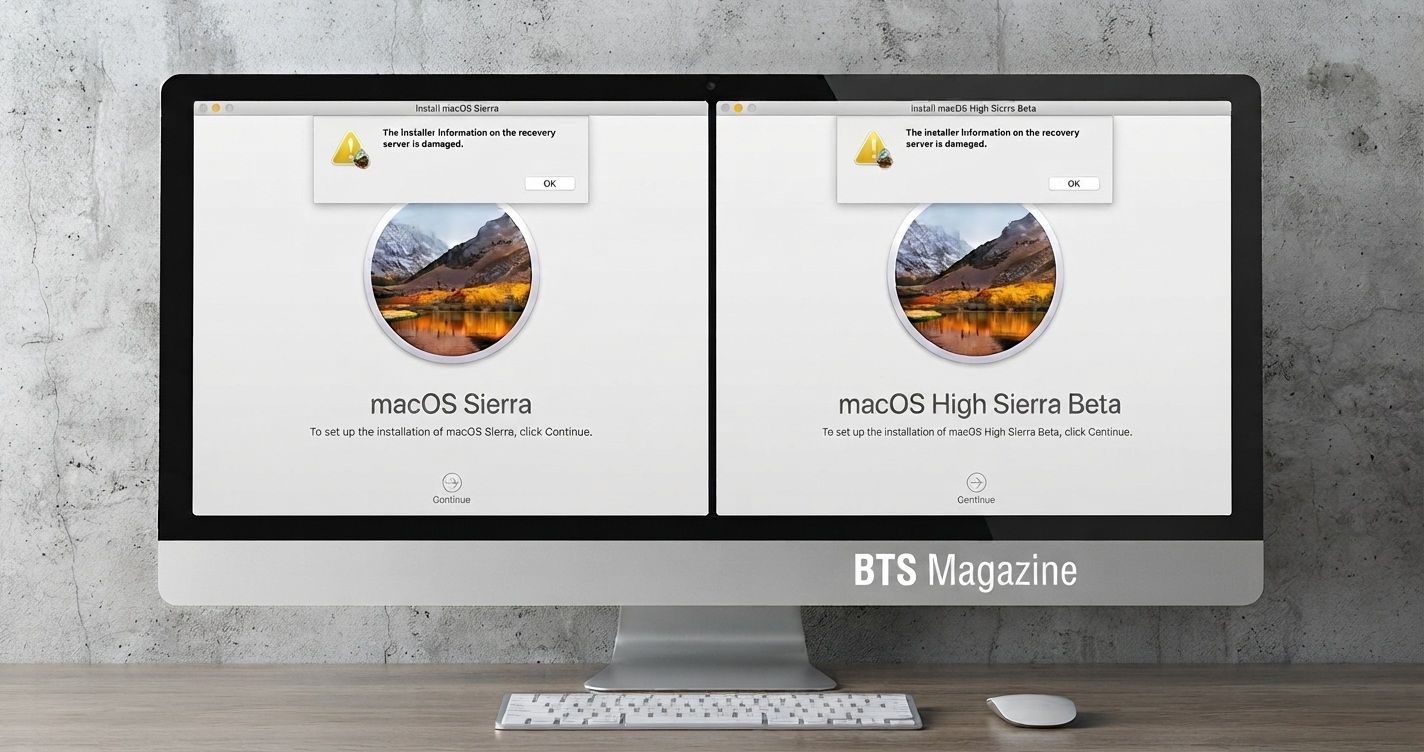
Seeing the message “installer information on recovery server is damaged” can be confusing, especially when you are trying to recover or reinstall your system. The error usually means the recovery environment cannot properly read or use the installer information it needs to continue.
In many cases, the problem is related to a damaged recovery system, an outdated recovery installer, an incorrect system date, network issues, or corrupted installation files.
The good news is that this error does not always mean your computer has a serious hardware problem. There are several practical fixes you can try before considering a complete system replacement or professional repair.
This guide explains what the recovery server error means, why it happens, and how to fix it step by step.
What Is “The Installer Information on the Recovery Server Is Damaged”?
“The installer information on the recovery server is damaged” is a recovery or installation error that indicates the system cannot obtain or validate the information required to download or install the operating system.
The recovery process normally needs access to valid installation resources. If those resources are unavailable, corrupted, outdated, or cannot be verified, the installation may stop and display this message.
Common causes include:
- Corrupted recovery information
- Incorrect system date and time
- Poor or unavailable internet connection
- Outdated recovery software
- Problems communicating with the recovery server
- Damaged installation files
- Storage or disk errors
- A recovery partition that is no longer working correctly
The exact cause can vary depending on the computer, operating system, and recovery method being used.
Why Is This Error Important?
A recovery error is important because it can prevent you from reinstalling, restoring, or repairing your operating system.
For example, imagine a laptop that suddenly stops booting correctly. You enter recovery mode and select the option to reinstall the operating system. Instead of starting the installation, the computer shows “The installer information on the recovery server is damaged.”
At this point, repeatedly selecting the same option usually will not solve the problem. You need to identify whether the issue is related to the system clock, network, recovery environment, or installation media.
Fixing the underlying problem can allow the recovery process to continue without unnecessary data loss.
Key Signs and Causes
Before trying advanced solutions, it helps to understand what may be causing the problem.
1. Incorrect Date and Time
An incorrect system clock can cause secure connections and installer verification to fail.
This is particularly important during internet-based recovery because the computer may need to communicate with a remote server securely.
2. Internet Connection Problems
If recovery requires downloading installation files, an unstable Wi-Fi connection can interrupt the process.
A connection that works for normal browsing may still be unreliable enough to cause a recovery download to fail.
3. Damaged Recovery Environment
The recovery environment itself may have corrupted files. If those files are damaged, the built-in recovery process may not work correctly.
4. Outdated Installation Information
Older systems may have trouble communicating with newer recovery or installation infrastructure.
In some cases, an older recovery method may need to be replaced with newer installation media.
5. Storage Problems
A failing or corrupted internal drive can also interfere with recovery.
If the drive has serious errors, fixing the recovery software alone may not be enough.
Step-by-Step Guide to Fix the Error
Try the following solutions in order. Start with the simplest option before moving to more advanced recovery methods.
Step 1: Restart the Computer
Start with a basic restart.
Completely shut down the computer, wait a few seconds, and then start it again. Enter recovery mode and try the installation process once more.
Temporary recovery errors can sometimes disappear after a clean restart.
Step 2: Check the Internet Connection
If the recovery process downloads files from a server, make sure your connection is stable.
Try these steps:
- Move closer to the Wi-Fi router.
- Restart the router if necessary.
- Try another trusted network.
- Avoid unstable public Wi-Fi.
- Use a wired connection if your computer supports it.
If the recovery environment allows network settings, reconnect before attempting the installation again.
Step 3: Check the System Date and Time
An incorrect date can cause authentication and certificate problems.
If you can access a terminal or command prompt from the recovery environment, check the current date and time.
On systems that provide a recovery terminal, the exact command depends on the operating system. Follow the official documentation for your platform rather than using commands intended for another system.
After correcting the date and time, restart the recovery process.
Step 4: Try Recovery Again
Once your network and system clock are correct, return to the recovery menu.
Select the appropriate recovery or reinstall option and allow the process to complete without interruption.
Do not shut down the computer while installation files are being downloaded or written to the drive.
Step 5: Use Official Installation Media
If internet recovery continues to fail, consider using official installation media.
A bootable USB installer can be useful when the internal recovery environment is damaged.
Before creating installation media:
- Use another working computer if necessary.
- Download the operating system installer from the official manufacturer or operating-system website.
- Use a reliable USB drive.
- Create the bootable installer using the official instructions.
- Boot the affected computer from the USB.
- Follow the recovery or installation instructions.
Avoid downloading operating-system installers from unknown websites. Modified installation files can create security and compatibility problems.
Step 6: Check the Internal Drive
If recovery repeatedly fails, the internal storage may need attention.
Look for symptoms such as:
- Frequent boot failures
- Unexpected system freezes
- Extremely slow file access
- Repeated disk errors
- Installation failures at different stages
Use the operating system’s official disk-repair or disk-checking tools where available.
If the drive is physically failing, software repair may not solve the problem.
Step 7: Back Up Important Data
Before performing a clean installation, make sure important files are backed up whenever possible.
A clean installation can remove existing files, applications, and settings.
If the computer still starts normally, copy important documents, photos, and other files to a secure backup location before attempting major recovery operations.
Common Mistakes to Avoid
Trying random fixes can make a recovery problem worse. Keep these mistakes in mind.
Ignoring the System Clock
A wrong date and time can cause unexpected verification problems. Always check the clock before moving to complicated solutions.
Using Unofficial Installers
Avoid pirated, modified, or unknown recovery files. They may contain malware or simply be incompatible with your hardware.
Repeatedly Restarting Without Checking the Cause
Restarting once is reasonable. Repeating the same recovery attempt many times without checking the network, clock, or recovery environment usually does not help.
Formatting the Drive Too Early
Formatting should not be your first response if important files are still stored on the computer.
Try to recover or back up your data first.
Interrupting Installation
Do not turn off the computer during an active installation unless the system is completely frozen and official troubleshooting instructions tell you to do so.
Expert Tips / Pro Tips
Here are a few practical tips that can save time.
- Start with simple checks. Network and date/time problems are easier to fix than a damaged recovery environment.
- Use official documentation. Recovery commands differ between operating systems.
- Keep a backup. Recovery problems are a reminder that important files should exist in more than one location.
- Use reliable installation media. Official installers reduce compatibility and security risks.
- Watch for hardware symptoms. Repeated installation failures can point to a failing SSD or hard drive.
- Do not assume the recovery server itself is broken. The message can also result from local recovery files, connectivity, or verification problems.
FAQs
What does “The installer information on the recovery server is damaged” mean?
It generally means the recovery system cannot correctly obtain, read, or validate the installer information required to continue the operating-system installation or recovery process.
Can an incorrect date cause this recovery error?
Yes. An incorrect system date and time can interfere with secure connections and certificate validation. Checking the clock is therefore one of the easiest troubleshooting steps.
Is the recovery server actually damaged?
Not necessarily. The message does not prove that the remote server is damaged. The problem may be caused by your recovery environment, network connection, system clock, or installation files.
Can I fix the problem without losing my files?
Potentially, yes. If the issue is caused by connectivity, system settings, or recovery software, you may be able to repair it without deleting your personal files. However, a clean installation can erase data, so create a backup whenever possible.
Should I use a USB installer?
If built-in recovery continues to fail, an official bootable USB installer can be a useful alternative. Make sure the installer matches your computer and operating system.
Why does recovery keep failing even though my internet works?
Normal internet access does not always guarantee that the recovery environment can communicate correctly with its required services. Network restrictions, DNS problems, certificates, outdated recovery software, or server-side issues can also interfere.
When should I contact a professional?
Consider professional help if the computer has important data that you cannot access, the internal drive shows signs of failure, recovery repeatedly fails, or you are uncomfortable using advanced recovery tools.
Conclusion
The error “The installer information on the recovery server is damaged” can stop an operating-system recovery process, but it does not automatically mean your computer is permanently damaged.
Start with the basics: restart the computer, verify the internet connection, check the system date and time, and retry recovery. If those steps do not work, official installation media may provide a cleaner recovery path.
Most importantly, protect your data before performing a clean installation or formatting the drive. If the error continues alongside disk failures or other hardware symptoms, the storage device itself may need to be checked.
With the right troubleshooting approach, you can often identify whether the problem is caused by recovery software, connectivity, installation files, or hardware—and choose the safest solution.
Read also: Spend Mark Zuckerberg Money NealFun.org: How to Play the Game