
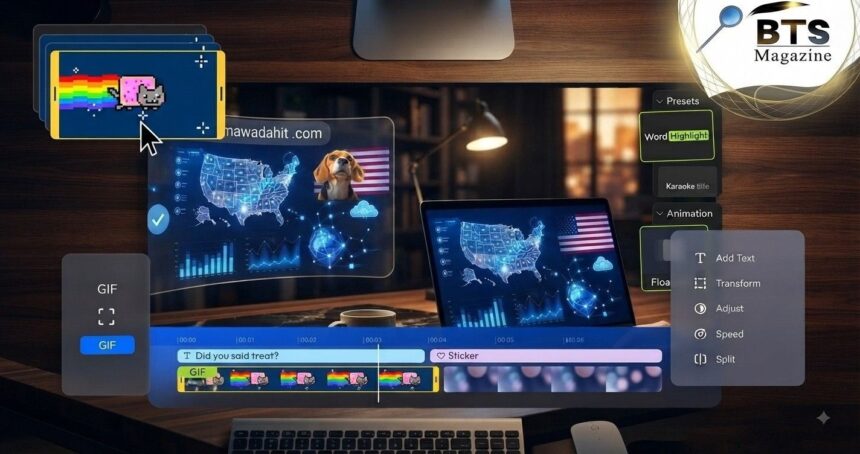
GIF Cropper is a simple tool for trimming unwanted parts from an animated GIF without turning the job into a complicated editing project. You can use it to remove empty space, focus attention on the main subject, change the visible frame, or prepare an animation for a website, social post, message, or presentation.
- What Is a GIF Cropper?
- Why People Crop Animated GIFs
- How GIF Cropping Works
- How to Use an Online GIF Cropper
- Step 1: Upload Your GIF
- Step 2: Select the Area You Want to Keep
- Step 3: Choose the Right Aspect Ratio
- Step 4: Preview Every Part of the Animation
- Step 5: Export the Cropped GIF
- Cropping a GIF Without Losing Animation
- Does Cropping Reduce GIF File Size?
- Cropping vs. Resizing a GIF
- Best Uses for GIF Cropping
- How to Get Better GIF Quality After Cropping
- Can You Crop a GIF on a Phone?
- Can You Crop a Transparent GIF?
- Common GIF Cropping Mistakes
- How to Choose a Good Online GIF Cropper
- Free GIF Cropper vs. Desktop Software
- Tips for Faster Online GIF Editing
- Choosing the Best Crop Size
- Why Previewing Matters More With Animated Files
- Should You Crop Before Compressing a GIF?
- Is a GIF Cropper Safe to Use?
- Who Can Benefit From GIF Cropping?
- Final Thoughts on Easy GIF Cropping
Cropping sounds basic, but it can make a big difference. A GIF with too much background often looks messy or feels poorly framed. A tighter crop can make the animation easier to understand and more useful on smaller screens.
What Is a GIF Cropper?
A GIF Cropper is an editing tool that lets you select a specific area of an animated GIF and remove everything outside that area. In most online tools, you upload the file, drag a crop box over the part you want to keep, preview the result, and export the edited animation.
The important part is that the animation should remain animated after the crop. A normal image editor may only open one frame or save a still picture, while a tool designed for GIF files processes the full frame sequence.
Why People Crop Animated GIFs
People crop GIFs for many simple reasons. Sometimes a screen recording includes browser tabs, menus, or blank borders that are not needed. In other cases, a reaction GIF may contain extra background that distracts from the person or object in the center.
Cropping can also help when a GIF needs to fit a specific layout. A square animation may work better in a profile-style card, while a wider crop can suit a website banner or article.
How GIF Cropping Works
A GIF is made from image frames that are displayed in sequence. The Graphics Interchange Format was introduced by CompuServe in 1987 and later became widely used for simple web animation. The format normally uses a palette of up to 256 colours for each image frame.
When you crop an animated GIF, the editor applies the crop area across its frames. A reliable tool also preserves timing and frame order so the motion still looks natural after export.
How to Use an Online GIF Cropper
Most browser-based tools follow a similar process. Start by uploading your animated image. After the file loads, choose the crop tool and move the selection box until it covers the part you want to keep.
Next, check the preview. Make sure important parts of the animation do not move outside the crop area during later frames. Once everything looks right, apply the crop and export the new GIF.
Step 1: Upload Your GIF
Choose the GIF from your phone, tablet, or computer. Depending on the editor, you may be able to drag and drop the file directly onto the page.
Before uploading, check the file size. Very large animations can take longer to process, especially when they contain many frames or have large pixel dimensions.
Step 2: Select the Area You Want to Keep
After the upload finishes, drag the crop handles around the useful part of the animation. This is where a GIF editing tool becomes especially helpful because you can visually remove unnecessary edges instead of guessing exact dimensions.
Try to leave a little breathing room around moving subjects. If you crop too tightly, a hand, face, caption, cursor, or product may disappear for part of the animation.
Step 3: Choose the Right Aspect Ratio
Some editors let you crop freely, while others offer fixed ratios such as 1:1, 4:3, 16:9, or 9:16. The best option depends on where you plan to use the finished file.
A square crop works well when the display area is compact. A vertical crop can be useful for phone-first layouts, while landscape dimensions make sense for wider web pages and presentations.
Step 4: Preview Every Part of the Animation
Do not judge the crop from the first frame alone. Animated subjects move, text can appear later, and camera motion may shift important details from one side to another.
Use the preview or timeline if the editor provides one. Watch the full loop at least once before exporting. This small check can prevent you from cutting off something important.
Step 5: Export the Cropped GIF
Once the crop looks right, apply the edit and export the result as a GIF. The tool may need a moment to rebuild the animation because each frame has to be processed.
After saving, open the finished file and watch it again. Check the crop, animation speed, image quality, transparency, and loop behaviour before you publish or share it.
Cropping a GIF Without Losing Animation
This is one of the biggest concerns for beginners. If you use software that does not properly support animated GIF files, you may end up saving only a single frame.
A dedicated GIF cropping tool is designed to work with the full animation rather than treating the upload as one static picture. Even so, it is smart to test the exported result because different tools can handle optimisation, transparency, and frame timing differently.
Does Cropping Reduce GIF File Size?
Cropping can reduce file size because the finished animation contains fewer pixels. However, the exact result depends on more than dimensions.
Frame count, colour changes, optimisation settings, transparency, and compression also affect the final size. A smaller crop may still produce a large file if the GIF is long or visually complex.
Cropping vs. Resizing a GIF
Cropping and resizing are not the same thing. Cropping removes part of the image area. Resizing keeps the whole visible frame but changes its width and height.
For example, if a GIF is 800 × 600 pixels and you remove the left and right edges, you are cropping it. If you scale the complete 800 × 600 animation down to 400 × 300, you are resizing it.
When Cropping Is Better
Cropping is better when the problem is unwanted content. Maybe there is a black border, empty space, a browser toolbar, or a background element that is not relevant.
It is also useful when you want to improve the composition. Instead of shrinking everything, you can keep the main subject large and simply remove areas that do not add value.
When Resizing Is Better
Resizing is better when the full frame is already useful but the dimensions are too large. It can make an animation easier to fit inside a web page, email, chat window, or content management system.
Many people use both processes together: crop first to remove unnecessary space, then resize the remaining image to the final dimensions.
Best Uses for GIF Cropping
A GIF cropping tool can be useful for tutorials, reaction images, product demonstrations, interface recordings, memes, short visual instructions, and social content. It is especially practical when the original animation was captured quickly and needs cleaner framing.
For example, a software tutorial might show the entire desktop even though only one button matters. Cropping the GIF around that action makes the instruction easier to follow.
How to Get Better GIF Quality After Cropping
Start with the best source file you have. Repeated editing and re-exporting can cause unnecessary changes in image quality or file size, depending on how the editor handles colour reduction and optimisation.
Keep the crop large enough for its final display size. If you crop a very small area and later enlarge it, the result can look soft or pixelated.
Keep Important Text Inside the Safe Area
If your GIF contains captions, labels, subtitles, or interface text, check every frame before final export. Text near the edge is easy to cut off accidentally.
A good approach is to leave a small margin around anything the viewer must read. This also makes the finished animation feel less cramped.
Avoid Cropping Too Close to Moving Objects
Movement changes what appears near the edge of the frame. A face that is centred in one frame may shift left in the next.
Watch the entire animation and give moving elements enough space. A slightly wider crop often looks cleaner than a tight crop that clips motion.
Can You Crop a GIF on a Phone?
Yes. Many browser-based editors can run on modern mobile browsers, so you may not need to install a separate app. The exact experience depends on the website, your device, and the size of the GIF.
On a small screen, dragging crop handles can be less precise. Zooming the page carefully or rotating the phone may make the selection easier.
Can You Crop a Transparent GIF?
You can crop a transparent GIF if the editor supports transparency correctly. Cropping itself changes the visible canvas area, but the export process also needs to preserve the transparency information.
This is worth checking after download. Place the finished GIF over a different background if possible so you can quickly spot any unwanted solid colour around the edges.
Common GIF Cropping Mistakes
The most common mistake is cropping based on a single frame. Another is using dimensions that do not match the final platform, which may lead to extra scaling or awkward placement later.
People also sometimes crop too aggressively. A cropping tool gives you control, but that does not mean every unused pixel needs to disappear. Good framing should keep the subject clear without making the animation feel crowded.
How to Choose a Good Online GIF Cropper
Look for a GIF Cropper that makes the selection area easy to control and gives you a clear animation preview. It should keep the GIF animated after export and provide understandable controls for dimensions or aspect ratio.
Privacy also matters when your file contains personal or business information. Read the service’s upload and retention policy before using it for anything sensitive. If the website does not clearly explain what happens to uploaded files, avoid sending confidential material.
Free GIF Cropper vs. Desktop Software
A free GIF Cropper is often enough for quick jobs. It is convenient when you only need to crop one animation and do not want to install a full editing program.
Desktop software can be more useful for advanced work, especially if you need frame-level editing, colour control, overlays, detailed optimisation, or repeated batch processing. The better choice depends on how often you edit GIFs and how much control you need.
Tips for Faster Online GIF Editing
Prepare the file before you open the editor. Know roughly what part you want to keep and where the result will be used. That makes it easier to choose a crop ratio from the start.
Also, avoid making several unnecessary exports. Finish the crop, resize, speed, and other adjustments in one workflow when the tool allows it. A simpler editing process is usually easier to manage.
Choosing the Best Crop Size
There is no single perfect crop size for every GIF. The right dimensions depend on the subject, the original animation, and where you want to publish it.
If the GIF is going into a blog post, for example, a wider shape may fit naturally between paragraphs. For a compact social graphic, a square or vertical crop may make better use of available screen space.
Think About the Final Display Area
Before cropping, check how large the animation will actually appear. There is little benefit in keeping a very large GIF if it will only be displayed inside a small content box.
At the same time, avoid reducing the dimensions too much. Starting with enough pixels gives you more flexibility when the animation appears on larger or high-resolution screens.
Why Previewing Matters More With Animated Files
With a normal photo, you only need to judge one image. Animated content is different because the important subject may move during the sequence.
What looks perfectly centred at the beginning might be close to the edge two seconds later. Watching the complete animation gives you a much better idea of whether your crop works.
Should You Crop Before Compressing a GIF?
In many workflows, cropping first makes sense because it removes pixels you do not need. You can then resize or optimise the smaller visible area based on your final requirements.
The exact order can depend on your editor, though. If a tool combines cropping, resizing, frame reduction, and optimisation into one export process, you may be able to handle everything at the same time.
Is a GIF Cropper Safe to Use?
The editing action itself is not risky, but the website you choose matters. Use reputable services, check whether the site uses HTTPS, and avoid uploading sensitive files unless you understand how the service stores and deletes uploads.
For confidential workplace material, private messages, customer information, or unreleased designs, offline software may be the better choice because the file can remain on your own device.
Who Can Benefit From GIF Cropping?
GIF editing is not limited to graphic designers. Bloggers can use it to tidy tutorial animations. Teachers can crop demonstrations around one important action. Marketing teams can clean up product examples, while developers may use cropped GIFs to show a short interface feature.
Even casual users can benefit when making reaction images or sharing screen recordings. The process is simple enough that you usually do not need professional editing experience.
Final Thoughts on Easy GIF Cropping
A GIF Cropper is a practical way to clean up animated images without learning complicated video or graphics software. It can remove unwanted borders, improve framing, focus attention, and help an animation fit the space where you plan to use it.
Here’s the thing: good cropping is less about cutting away as much as possible and more about keeping the right content in view for the entire animation. To be honest, a quick preview before export solves many common mistakes. What’s interesting is that GIF itself has been around since 1987 and is still closely associated with simple web animation. If you want more background on the format, read Wikipedia’s article about GIF.