
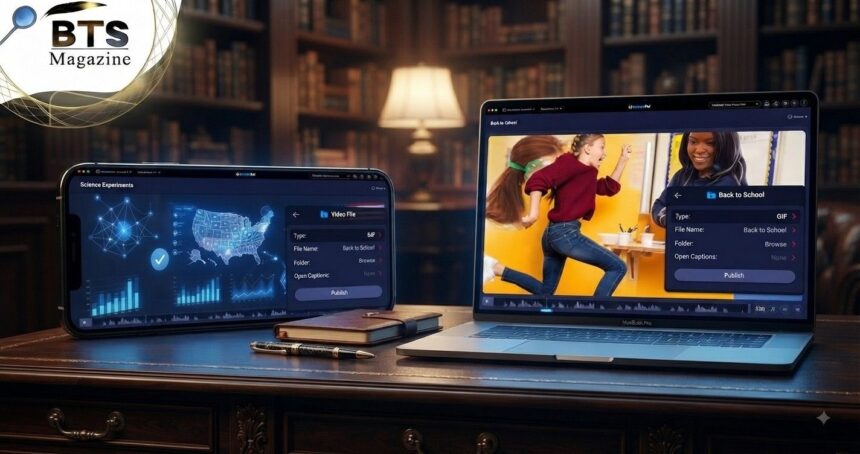
GIF to MP4 conversion is a simple way to turn an animated image into a standard video file. It can make sharing, uploading, editing, and storing short animations much easier. You usually do not need advanced editing skills either. With a basic online converter or video tool, the process can take only a few steps.
- What Is a GIF File?
- What Is an MP4 File?
- Why Convert GIF to MP4?
- How GIF to MP4 Conversion Works
- How to Convert a GIF Into MP4
- Step 1: Choose Your GIF File
- Step 2: Select MP4 as the Output
- Step 3: Adjust Video Settings if Needed
- Step 4: Start the Conversion
- Step 5: Check the Finished Video
- Does Converting GIF to MP4 Improve Quality?
- Can You Keep the Original Animation Speed?
- What Happens to GIF Loops?
- Does a Converted MP4 Have Sound?
- How to Reduce MP4 File Size
- GIF to MP4 for Social Media Content
- Using MP4 in Video Editing Projects
- Online Converter vs Desktop Software
- Common Problems During Conversion
- Tips for Better GIF to MP4 Results
- Is Converting GIF to MP4 Worth It?
- Final Thoughts
Here’s the thing: GIF files are useful for quick animations, memes, reactions, and simple graphics, but they are not always the most practical format. MP4 is commonly used for video and works well across browsers, phones, computers, video editors, and many online platforms.
What Is a GIF File?
GIF stands for Graphics Interchange Format. It is a bitmap image format developed by a team at CompuServe and released in 1987. A GIF can contain multiple images or frames in one file, which makes animation possible.
GIF supports a palette of up to 256 colors for an individual image. That limitation works well for simple graphics, logos, reactions, and animations, but it is less suitable for detailed photographs with many colors and smooth gradients.
Why GIFs Became So Popular
Animated GIFs became popular because they are easy to view and share. They can play automatically and usually do not require the viewer to press a play button.
They are especially useful for short reactions, product demonstrations, simple tutorials, memes, and repeating animations. You can place them in web pages, messages, and many other types of digital content.
What Are the Limits of GIF?
GIF is useful, but it has some clear limits. It does not work like a normal video format, and traditional GIF files do not carry an audio track.
Color is another limitation. Since GIF uses a restricted color palette, detailed animation can lose smooth gradients and natural-looking colors.
File size can also become a problem. A longer animation with large dimensions and many frames may create a surprisingly heavy GIF file.
What Is an MP4 File?
MP4 is a digital multimedia container format. Its formal name is MPEG-4 Part 14, and it is commonly used to store video and audio. It can also contain other information, including subtitles and still images.
In everyday use, people usually think of MP4 simply as a video file. It is one of the formats you regularly see when downloading videos, creating social content, editing clips, or saving recordings.
Why MP4 Works Well for Video
MP4 is designed for multimedia rather than frame-by-frame image animation. That makes it a practical choice when you want your animation to behave like a normal video clip.
It can also be streamed over the internet, which is useful for websites and online video services.
Why Convert GIF to MP4?
There are several good reasons to convert GIF to MP4. One of the biggest is convenience. A video file is often easier to edit, upload, organize, and use inside other video projects.
You may also want more control over playback. Once your animation becomes a video, you can place it on a timeline, trim sections, combine it with other clips, add text, or include sound using a video editor.
MP4 Can Be Better for Large Animations
A detailed animated GIF can contain many frames. As the animation becomes longer or larger, the file can grow quickly.
Video compression handles moving content differently. Depending on the converter, settings, and content, turning an animation into MP4 may produce a more manageable file while keeping the movement looking smooth.
That does not mean MP4 will always be smaller. File size depends on resolution, frame rate, duration, codec, bitrate, and the settings used during conversion.
How GIF to MP4 Conversion Works
A GIF to MP4 converter reads the individual frames inside the animated GIF and turns them into frames of a video.
The converter then creates an MP4 container for the finished video. Depending on the tool, you may also be able to choose settings such as resolution, frame rate, quality, bitrate, or video codec.
To be honest, you usually do not need to understand all of those technical settings. Most simple converters provide automatic options that work well for everyday animations.
How to Convert a GIF Into MP4
The exact buttons depend on the tool you use, but the basic process is normally very similar.
Step 1: Choose Your GIF File
Start by selecting the animated GIF you want to change.
You may be able to upload it from your computer or phone. Some services also support files stored in cloud storage, although this depends on the converter.
Before uploading private or sensitive files to an online tool, check its privacy policy and file-handling rules.
Step 2: Select MP4 as the Output
Choose MP4 as your output or export format.
Some tools make this automatic when you open a dedicated GIF to MP4 converter. Others provide a list of formats and ask you to select MP4 manually.
Step 3: Adjust Video Settings if Needed
You may see options for resolution, frame rate, video quality, aspect ratio, or compression.
For a simple meme or reaction animation, the default settings may be enough. If you need a video for a specific website, project, or screen size, reviewing the output settings can help avoid unnecessary resizing later.
Step 4: Start the Conversion
Start the conversion after checking your settings.
The processing time depends on several factors, including the length of the animation, dimensions, number of frames, file size, chosen settings, and the performance of the service or device handling the conversion.
Step 5: Check the Finished Video
Do not immediately assume the converted file is perfect.
Play the MP4 and check whether the animation is complete. Look for missing frames, strange speed changes, poor image quality, unexpected cropping, or incorrect dimensions.
This quick check can save you from uploading the wrong version later.
Does Converting GIF to MP4 Improve Quality?
A GIF to MP4 conversion does not magically restore image detail that was already missing from the original GIF.
If the GIF is blurry, heavily compressed, or limited in color, converting it into a video cannot recreate the original source quality. The new video can only work with the visual information available in the GIF.
What’s interesting is that MP4 may still look cleaner in practical use because video compression, playback, and platform handling are different from animated GIFs.
Can You Keep the Original Animation Speed?
Usually, yes. A good converter should preserve the timing of the GIF frames when creating the video.
Problems can happen if a tool forces a different frame rate or does not interpret unusual GIF timing correctly. If the final MP4 seems too fast or too slow, try another conversion setting or tool.
Always compare the finished video with the original animation before publishing it.
What Happens to GIF Loops?
Animated GIFs are often designed to repeat forever. Video files work differently.
A converter may create a video that contains only one complete cycle of the animation. Other tools may allow you to repeat that cycle several times before exporting.
If you need a continuously repeating video on a website or app, the looping behavior may need to be controlled by the video player rather than the MP4 file itself.
Does a Converted MP4 Have Sound?
A normal GIF does not contain an audio track, so simply converting it will not suddenly give the animation sound.
If you want music, narration, or sound effects, first complete your GIF to MP4 conversion and then open the video in an editor that supports audio.
You can add the sound there and export a new version.
How to Reduce MP4 File Size
If your converted video is too large, start by checking the resolution. A tiny animation usually does not need to become a very high-resolution video.
You can also review frame rate, bitrate, duration, and quality settings if your converter provides them.
Avoid extreme compression just to make the number smaller. Heavy compression can introduce visible artifacts, blur fine details, and make text harder to read.
Keep the Original Aspect Ratio
Stretching an animation can make people, text, logos, and objects look distorted.
When changing resolution, keep the original width-to-height relationship unless you specifically need a new aspect ratio.
If you need a square, vertical, or horizontal video for a particular platform, cropping carefully is usually better than simply stretching the image.
GIF to MP4 for Social Media Content
One common reason people use GIF to MP4 tools is to prepare animations for video-focused content.
Turning a GIF into video can make it easier to place the animation inside a larger social video, add music, include captions, create transitions, or combine it with other clips.
Before uploading, check the current requirements of the platform you plan to use. File size, resolution, aspect ratio, duration, and supported formats can change over time.
Using MP4 in Video Editing Projects
MP4 files are generally easier to work with inside video workflows than animated GIF files.
After conversion, you can place the clip on a video timeline and combine it with images, recordings, voiceovers, titles, transitions, and other video elements.
This is particularly useful when an animated GIF is only one small part of a longer project.
Online Converter vs Desktop Software
An online GIF to MP4 converter is convenient when you need a quick result without installing software. You upload the file, choose the output, process it, and save the result.
Desktop software can offer more control over video settings and may be preferable when working with many files or sensitive content.
Neither option is automatically better. The right choice depends on how often you convert files and how much control you need.
Think About Privacy Before Uploading
Free online converters can be useful, but remember that your file is being sent to another service for processing.
For ordinary public memes or simple animations, this may not matter much. For personal documents, confidential work, client materials, or private images, read the service’s privacy and deletion policies first.
If privacy is especially important, processing the file locally on your own device can be a better choice.
Common Problems During Conversion
Sometimes a GIF to MP4 conversion does not look exactly as expected.
The video might be too large, too blurry, stretched, cropped, or playing at the wrong speed. The animation may also stop after one cycle when you expected it to keep looping.
These problems usually relate to output settings or how a converter handles the original GIF rather than the basic idea of conversion itself.
Why the MP4 May Look Blurry
The first thing to check is the original GIF.
If the source animation is only a few hundred pixels wide, exporting it at a much larger resolution will not create real extra detail. It mainly enlarges the existing pixels.
For better results, avoid unnecessary upscaling and keep the output close to the dimensions of the original file.
Why the File Size May Still Be Large
MP4 does not guarantee a tiny file.
A high resolution, high bitrate, long duration, or unnecessary number of repeated animation cycles can increase the final size.
If size matters, compare different export settings instead of assuming that simply changing the extension will solve the problem.
Tips for Better GIF to MP4 Results
Keep a copy of your original GIF before converting anything. This gives you a clean source if you need to try different settings.
Use sensible dimensions, check the animation speed, preview the entire MP4, and avoid excessive compression. If text appears in the animation, make sure it remains sharp enough to read after conversion.
Most importantly, choose settings based on where the video will actually be used.
Is Converting GIF to MP4 Worth It?
For many situations, yes. GIF to MP4 conversion is useful when you need an animated file to work as a regular video.
It can make editing easier and give you more options for combining an animation with other video elements. MP4 is also a standard multimedia container widely associated with video and audio content.
You do not need to convert every GIF you have, though. If a small animation already works perfectly where you plan to use it, keeping the original may be simpler.
Final Thoughts
Converting GIF to MP4 is a straightforward way to turn a simple animation into a more flexible video file. Choose your GIF, select MP4, review the output settings, run the conversion, and check the finished video before using it. If you want to understand the format itself in more detail, the MP4 file format on Wikipedia explains how MPEG-4 Part 14 works and what types of multimedia data an MP4 container can hold.