Introduction
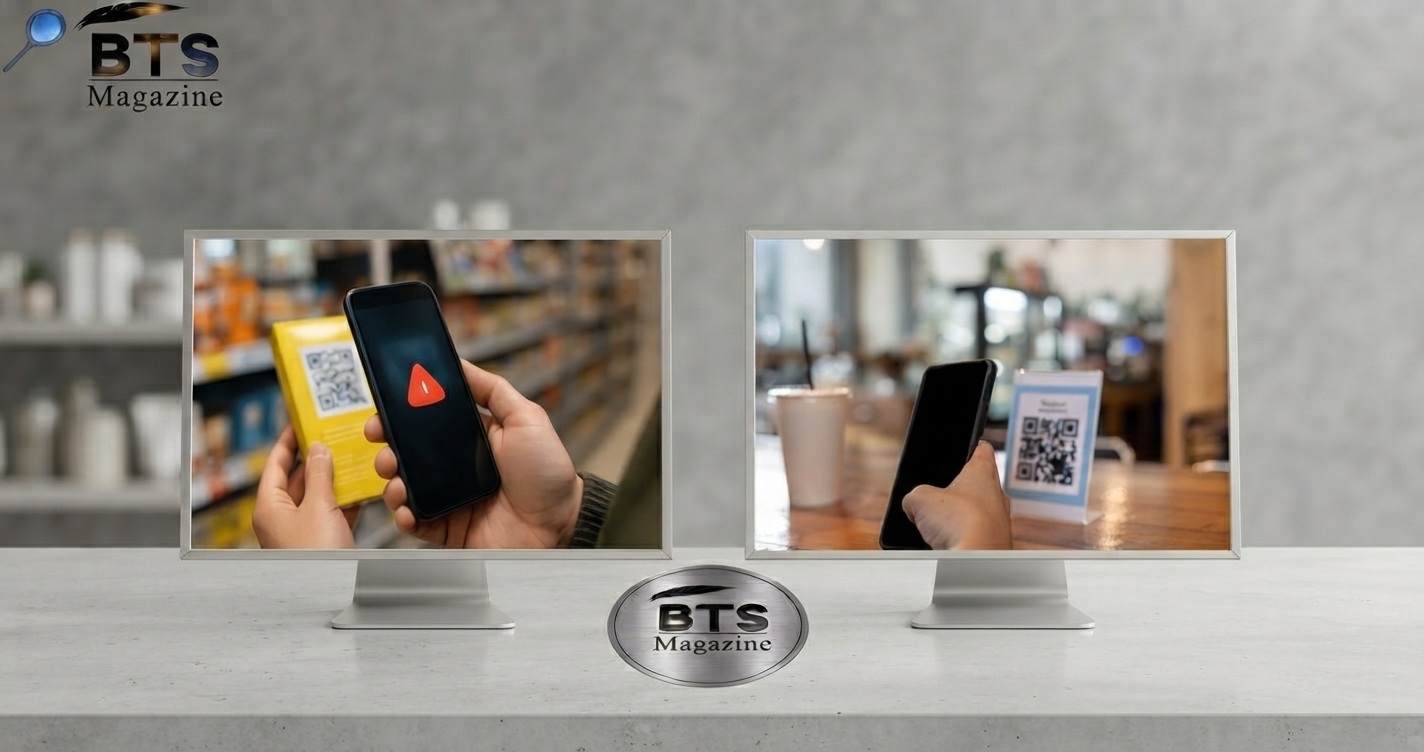
You create a QR code, save it to your phone, print it, or add it to a poster—and then notice something is wrong. The QR code blurred, the squares look fuzzy, and your phone struggles to scan it.
This is a common problem, but it does not always mean the QR code itself is broken. Blur can happen because of a low-quality image, poor printing, incorrect sizing, camera focus, compression, or even the surface where the code is displayed.
The good news is that most blurred QR code problems are easy to fix. In this guide, you will learn why QR codes become blurry, how to make them clearer, and what mistakes to avoid when creating or printing one.
What Is a Blurred QR Code?
A blurred QR code is a QR code whose small black-and-white modules or patterns are not sharp enough for a scanner to read correctly.
QR codes are designed to store information in a two-dimensional pattern that smartphones and other scanners can read. You can learn more about the technology and history of QR codes on Wikipedia’s QR Code page.
QR scanners need to identify the individual squares and the spaces between them. When those areas become distorted, compressed, stretched, or out of focus, scanning can fail.
A QR code may appear blurred because of:
- Low-resolution images
- Excessive image compression
- Incorrect resizing
- Poor printing quality
- Camera focus problems
- Glare or reflections
- Dirty screens or lenses
- Insufficient contrast
- Very small QR codes
Importantly, a QR code can look slightly imperfect and still scan successfully. The real test is whether a reliable QR scanner can read it.
Why Is My QR Code Blurred?
There are several possible causes. Finding the exact cause is the first step toward fixing the problem.
1. The Original Image Has Low Resolution
If you download or create a QR code as a small JPG or screenshot, enlarging it can make the edges fuzzy.
For example, a QR code that looks fine at 200 × 200 pixels may become blurry when stretched across a large poster.
Fix: Create or download the QR code at the size you actually need. When possible, use a vector format such as SVG or a high-resolution image.
2. The QR Code Was Compressed
Social media platforms, messaging apps, websites, and image editors may compress uploaded images.
This compression can damage the sharp edges that QR scanners need.
Fix: Upload the original QR image whenever possible instead of repeatedly saving and re-uploading screenshots.
3. The QR Code Was Resized Incorrectly
Stretching a QR code unevenly can change the shape of its modules.
A QR code should remain square. If its width and height are changed independently, scanning may become difficult.
Fix: Lock the aspect ratio when resizing. Never stretch the code horizontally or vertically.
4. Your Phone Camera Is Out of Focus
Sometimes the QR code is perfectly clear, but the camera makes it look blurred.
This can happen when the phone is too close, too far away, or moving while you scan.
Fix: Hold your phone steady and move it slightly closer or farther away until the code becomes sharp.
5. Printing Quality Is Poor
A QR code printed with a low-quality printer may have fuzzy edges.
Ink can also spread on certain paper types, especially if the paper absorbs too much ink.
Fix: Use a good-quality printer and choose a suitable paper surface. Test the printed QR code before distributing it.
6. There Is Not Enough Contrast
QR codes usually work best when the modules have strong contrast against the background.
A dark gray code on a similar gray background may be much harder to scan than a dark code on a light background.
Fix: Use a clear, high-contrast design and avoid complicated backgrounds.
Why Is a Clear QR Code Important?
A QR code is designed to provide fast access to digital information. It may open a website, payment page, contact card, menu, app download, or another resource.
If the code is blurred, users may need several attempts to scan it—or give up completely.
A clear QR code provides:
- Faster scanning
- Better user experience
- Fewer failed scans
- Greater trust
- Better performance on printed materials
- More reliable access to links and information
For businesses, this matters even more. A QR code on a menu, product package, advertisement, or business card should work quickly without forcing customers to struggle with their cameras.
Key Features of a Good QR Code
A reliable QR code does not have to be fancy. In fact, simple designs often work best.
High Image Quality
Use a sufficiently large, sharp source image. Avoid enlarging a tiny screenshot.
Strong Contrast
Dark modules against a light background are generally easy for scanners to recognize.
Proper Shape
Keep the QR code perfectly square. Do not stretch it.
Clear Quiet Zone
Leave enough blank space around the QR code. This helps scanners separate the code from surrounding content.
Suitable Size
A QR code should be large enough for the intended scanning distance.
A code on a large poster may need to be larger than one printed on a business card.
How to Fix a Blurred QR Code: Step-by-Step Guide
If your QR code is blurred, try these solutions in order.
Step 1: Check the Original File
Open the original QR code before editing it.
If the original is already blurry, find a higher-quality version or generate the QR code again.
Step 2: Generate the Code Again
If you still have the original website URL, text, or other information, creating a new QR code may be easier than repairing a heavily damaged image.
Save the new version in a high-quality format.
Step 3: Avoid Screenshots
Do not use a screenshot if you can download or export the original QR code.
Screenshots can introduce unnecessary scaling and compression.
Step 4: Resize It Correctly
If you need a larger code, resize it while keeping its square proportions.
For important printed materials, consider using a vector version so it can scale without becoming pixelated.
Step 5: Improve Contrast
Remove busy backgrounds and use strong color contrast.
A simple black-and-white QR code is often the safest choice.
Step 6: Check the Camera
Clean your phone camera lens and make sure the camera has enough light.
Move the phone slowly until the QR code comes into focus.
Step 7: Test Before Publishing
Scan the QR code using more than one device if possible.
Test it:
- From different distances
- Under normal lighting
- From the final printed material
- On both Android and iPhone devices
Never assume a QR code works just because it looks correct on your computer.
Common Mistakes to Avoid
Making the QR Code Too Small
A tiny code can be difficult for a camera to recognize, particularly from a distance.
Using Low-Quality Images
Avoid repeatedly enlarging JPG files or screenshots.
Adding Too Many Design Effects
Gradients, shadows, patterns, and decorative elements can interfere with readability.
Removing the Blank Border
The space around a QR code is useful for separating it from nearby content.
Printing Without Testing
A digital QR code may scan perfectly while the printed version fails because of size, paper, ink, or lighting.
Using a Busy Background
A photograph or complex pattern behind the code can make its modules harder to distinguish.
Expert Tips for Better QR Codes
If you regularly create QR codes for websites, marketing, or business materials, follow these practical tips:
- Keep the design simple.
- Use a high-resolution or vector source.
- Maintain strong foreground-to-background contrast.
- Keep the QR code square.
- Leave sufficient blank space around it.
- Avoid unnecessary filters and effects.
- Test the final version before publishing.
- Test printed versions at their actual size.
- Do not repeatedly compress the image.
- Make the code appropriate for its scanning distance.
A QR code does not need to look complicated to look professional. In many cases, a clean and simple design is the most reliable option.
FAQs About Blurred QR Codes
Why is my QR code blurred on my phone?
Your QR code may look blurred because the camera is out of focus, the phone is too close, lighting is poor, or the original image has low resolution. Clean the camera lens, improve lighting, and move the phone slowly until the code becomes sharp.
Can a blurred QR code still be scanned?
Yes. A QR code can sometimes be scanned even when it looks slightly blurry because QR codes contain error-correction features. However, severe blur can make the individual modules impossible for a scanner to distinguish.
How do I make a blurred QR code clear?
If the original image is low quality, the best solution is usually to generate or export the QR code again at a higher quality. Avoid simply enlarging a blurry image because this normally makes the pixels more noticeable.
Why does my printed QR code look blurry?
A printed QR code can become blurry because of low printer resolution, ink spreading, poor paper quality, excessive resizing, or a low-resolution source image. Use a high-quality file and test the printed result before using it publicly.
What is the best format for a QR code?
For flexible sizing, a vector format such as SVG is often a strong choice because it can be scaled without the pixelation associated with raster images. For raster formats, use an appropriately high-resolution PNG.
Why won’t my QR code scan even though it looks clear?
The problem may not be blur. Check the contrast, quiet zone, code size, camera focus, lighting, and whether the QR code’s underlying data or destination still works.
Should I create a new QR code if the old one is blurry?
If you still have the original information, creating a new high-quality QR code is often the simplest solution. It is usually better than trying to sharpen a severely damaged image.
Conclusion
A QR code blurred problem can happen for many reasons, from low image quality and compression to poor printing and camera focus.
The most effective solution is to start with a high-quality QR code, keep it square, use strong contrast, preserve the blank border, and avoid excessive resizing or compression.
If a QR code has already become badly blurred, regenerating it from the original information is often better than trying to repair the image.
Before publishing a QR code on a website, poster, package, menu, or business card, always test the final version. A few seconds of testing can prevent a frustrating experience for your users.
Read also: Who Is the CEO of Solauto.tech? Revealed