Your first login to Blooket Dashboard can feel like walking into a room with too many doors. Discover, Create, Market, Blooks: the labels aren’t self-explanatory, and it’s hard to know where to click first. If you’re trying to figure out how to use the Blooket dashboard, rest assured that nearly every beginner goes through the same moment of confusion. This walkthrough explains what each section does, so within a few minutes you can move around the platform with confidence.
What the Blooket Dashboard Actually Is
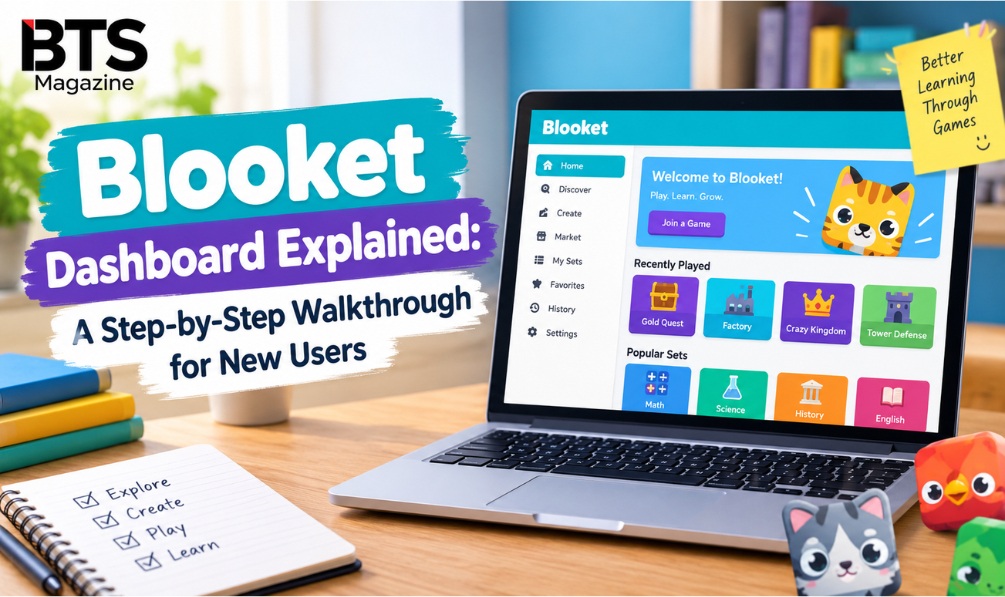
Think of the dashboard as the control center for your account. Once you log in at id.blooket.com, you are sent on to dashboard.blooket.com, the single screen where most of the action takes place. From there you can:
- Build and organize question sets
- Run live games as the host
- Give students homework to finish at their own pace
- Review progress and earlier game results
- Collect and manage your Blooks
Instead of spreading these tools over many different pages, Blooket Dashboard gathers them in one spot. That’s handy once you know the layout, though it can feel crowded at first glance.
A Closer Look at Each Tab
Discover
Discover lets you browse public question sets created by other users. When your subject is widely taught, such as a grade-level math unit, a well-known novel, or a basic science concept, chances are someone has already made a set you can use directly or tweak. For most people, this is the quickest way to get started without writing everything yourself.
Create
Create is the place to build question sets from scratch. You enter the questions, the answer options, and the correct answer. Once saved, the set is ready to be hosted as a game by you, or by others if you publish it. If your material is tied to your own curriculum or classroom, this tab will probably be your most visited.
Market
The Market is the home of Blooks, the collectible characters linked to gameplay. You earn tokens by playing, then spend them on themed packs hoping to land new Blooks. Think of it as a reward shop in the spirit of gamification: the more you play, the more you have to spend.
Blooks
This is your private collection page. It lists every Blook you’ve unlocked, including duplicates and their rarity levels. Some players care only about the games, but for others, completing the collection becomes a goal that runs alongside the learning itself.
Hosting a Game from the Dashboard
When you run a session, usually as a teacher though anyone can do it, you take on the role of Blooket host. Hosting from the dashboard typically goes like this:
- Select a question set, whether you made it yourself or found it in Discover
- Click “Host” to start setting up the game
- Choose a game mode and fine-tune the settings
- Start the game and give players the join code that’s generated
- Watch progress from the dashboard while the game runs
Sets, hosting controls, and progress tracking all lead back to this one dashboard, so learning it early is time well spent.
Assigning Homework
Besides live games, the dashboard lets you assign homework: a question set that players work through whenever suits them instead of in a live session. It’s a good option when you want the revision value of Blooket without having to arrange a real-time class. Homework is managed and tracked from the same place as everything else, and the results appear next to your live game history.
Tracking Progress
After you’ve hosted games or assigned homework, the dashboard keeps a log of that activity. You can look back at how a group performed, notice which questions were often missed, or compare results from different sessions. This is handy when Blooket is a regular revision tool rather than a one-time activity.
Tips for Feeling at Home in the Dashboard
- Begin with Discover before creating your own set. Finding something close to your needs and adjusting it is usually quicker than starting with an empty set.
- Give the Market a look now and then. Tokens build up naturally as you play, so an occasional visit keeps your Blook collection growing with no extra effort.
- Use homework for review outside class. When lesson time is short, students can still work with the material without a live session.
- Go back over past game data. The history is more than a record; it can show you which questions repeatedly stump students.
Frequently Asked Questions
Is a paid account required to use the dashboard?
No. A free account includes the dashboard with its Create, Discover, Market, and Blooks tabs, plus the ability to host games.
Where do I log in to get to the dashboard?
Log in at id.blooket.com, and you’ll be redirected to dashboard.blooket.com, which serves as your main account screen from then on.
How is hosting a game different from assigning homework?
Hosting starts a live, real-time game that players enter using a join code. Homework is done independently, on each player’s own schedule.
Can players view the dashboard as well?
No. The dashboard, including host controls and progress tracking, is visible only to the account holder running the games. Players see just their own gameplay screen after joining.
Final Thoughts
At first glance the Blooket dashboard seems like a lot, yet each tab has one clear purpose: Discover for finding content, Create for making your own, Market and Blooks for the collectible side, and the hosting controls to bring everything together. After clicking through each area a few times, returning to host a game or check your Blook collection will feel natural.
Read also: MathPlayZone Explained: Games, Features, Benefits & More