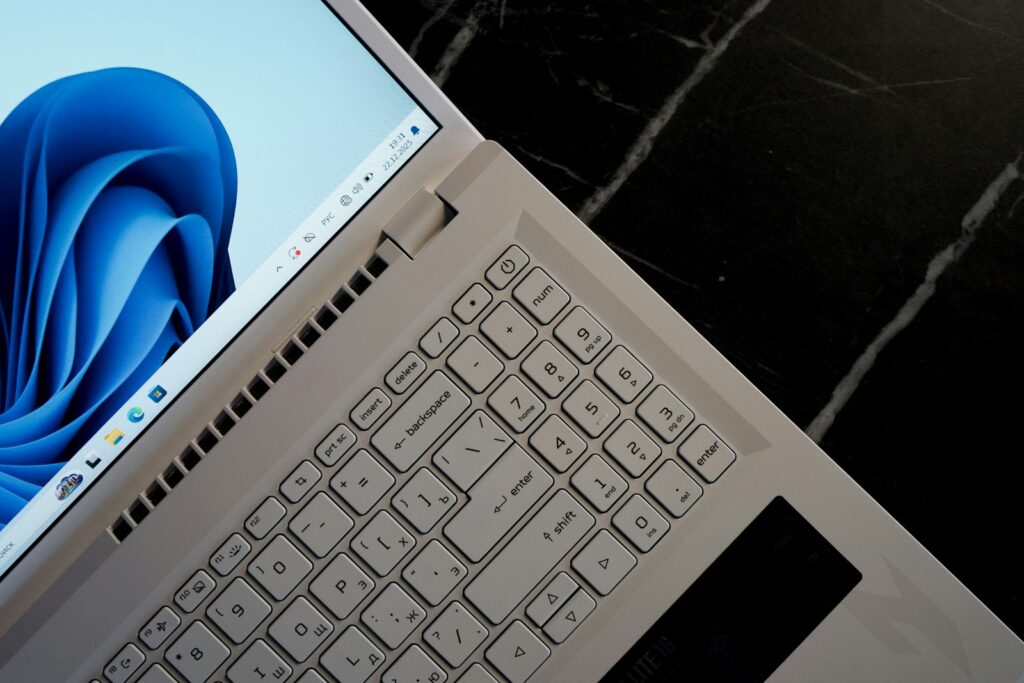
A practical comparison of Windows 11 Home and Pro, so you know whether the extra features are worth paying for.
Quick answer: Windows 11 Home has everything most people need for everyday use, gaming and schoolwork. Windows 11 Pro adds business features such as full BitLocker encryption management, Hyper-V virtual machines, Windows Sandbox, Remote Desktop hosting, Group Policy and domain join. Microsoft’s list prices are $139.99 for Home and $199.99 for Pro, and upgrading from Home to Pro costs $99.99.
Windows 11 Home and Pro look the same and run the same apps. The difference is in the tools under the surface, mostly built for businesses, IT teams and power users.
This guide compares the two editions feature by feature, explains the price difference, and helps you decide whether Pro is worth it for you. Feature and price details come from Microsoft listings summarised by Windows Central.
In this article
- What are the differences between Windows 11 Home and Pro?
- What do the Pro features actually do?
- Who needs Windows 11 Pro?
- Which edition should you choose when buying a new PC?
- How much do they cost, and how do you upgrade?
- What about other Windows 11 editions?
- Is Windows 11 Home secure enough?
- What should you watch out for?
- Frequently asked questions
- Final thoughts
What are the differences between Windows 11 Home and Pro?
| Feature | Home | Pro |
|---|---|---|
| Everyday apps, gaming, Microsoft Store | Yes | Yes |
| Device encryption | Yes, on supported devices | Yes |
| Full BitLocker management | No | Yes |
| Hyper-V virtual machines | No | Yes |
| Windows Sandbox | No | Yes |
| Remote Desktop host | No (can connect out only) | Yes |
| Local Group Policy Editor | No | Yes |
| Join a business domain or Entra ID | No | Yes |
| Maximum RAM | 128 GB | 2 TB |
| Maximum CPUs | 1 socket, 64 cores | 2 sockets, 128 cores |
Both editions require internet and a Microsoft account during setup for personal use, according to Microsoft’s Windows 11 specifications.
What do the Pro features actually do?
BitLocker
BitLocker encrypts your whole drive, so a lost or stolen laptop does not expose your files. Home offers simpler device encryption on many PCs, but Pro gives you full control, including encrypting removable drives and managing recovery keys yourself.
Hyper-V and Windows Sandbox
Hyper-V lets you run other operating systems in virtual machines. Windows Sandbox opens a temporary, isolated copy of Windows to test untrusted files or apps safely. When you close it, everything inside is deleted.
Remote Desktop host
With Pro, you can connect to your PC from another device. Home can only connect out to other computers.
Group Policy and domain join
These let IT teams manage settings across many PCs and connect them to company networks and Microsoft Entra ID.
Tariq is a freelance developer. He uses Hyper-V to test his software on different systems and Remote Desktop to reach his office PC from a laptop when he travels. For him, Pro pays for itself. His teenage daughter, who games and does homework, is happy with Home.
Who needs Windows 11 Pro?
- Small business owners: For BitLocker, Remote Desktop and easier IT management.
- Developers and IT staff: For Hyper-V, Sandbox and testing tools.
- Remote workers: Who need to connect to their own PC from elsewhere.
- Security-focused users: Who want full control over drive encryption.
Home is enough for most students, gamers and home users. Gaming performance is the same on both editions.
Check whether your laptop already supports Device Encryption in Home by opening Settings, then Privacy and security. If it does, you may already have enough protection for personal use and can skip the Pro upgrade.
Which edition should you choose when buying a new PC?
Most consumer laptops come with Home, while business laptops often come with Pro. If you buy a PC for work, choosing a Pro model at purchase can cost less than buying the $99.99 upgrade later, because PC makers often build the licence into the price.
- Check the listing: The edition is usually shown in the specifications as “Windows 11 Home” or “Windows 11 Pro”.
- Compare total cost: Compare a Home model plus the upgrade with the same model sold with Pro.
- Think about the next few years: If you may start freelancing or working remotely, Pro features can become useful later.
A small accounting firm bought five new laptops. Choosing models with Pro already installed cost less per laptop than upgrading Home later, and the firm could turn on BitLocker on every device from day one.
How much do they cost, and how do you upgrade?
According to Windows Central, Microsoft’s US list prices are $139.99 for Home and $199.99 for Pro, and the upgrade from Home to Pro is $99.99. Retailers and PC makers often charge less when Windows comes preinstalled.
- Open Settings > System > Activation.
- Choose Upgrade in the Microsoft app or Change product key if you already have a Pro key.
- Follow the prompts. Your files and apps stay in place, and Windows does not need reinstalling.
What about other Windows 11 editions?
Home and Pro are the two editions most people choose between, but Microsoft offers others for specific needs:
| Edition | Who it is for |
|---|---|
| Pro for Workstations | High-end PCs with server-grade hardware and very large memory |
| Enterprise | Larger organisations through volume licensing |
| Education | Schools and universities through academic licensing |
| SE | A cloud-first edition designed for schools |
Individuals and small businesses rarely need these. If your employer or school provides one, it is usually managed by their IT team.
Is Windows 11 Home secure enough?
For most home users, yes. Both editions include Microsoft Defender antivirus, a firewall, Windows Hello sign-in, Smart App Control on clean installs, and regular security updates. The extra Pro tools mainly help when a device holds sensitive business data or must be managed by IT.
What should you watch out for?
- Very cheap keys: Unusually cheap Windows keys from unofficial sellers may not be legitimate.
- Business features need setup: Domain join and Entra ID need extra services, so Pro alone does not provide them.
- Downgrading is harder: Moving from Pro back to Home usually needs a clean install.
If you are still on Windows 10, read our guide to Windows 10 end of life and learn how to update to Windows 11.
Open Settings, then System, then About, and check which edition you have. Then list the tasks you do each week. If none need BitLocker, Hyper-V or Remote Desktop hosting, you probably do not need Pro.
Frequently asked questions
Is Windows 11 Pro faster than Home?
No. Everyday speed and gaming performance are the same. Pro adds features, not speed.
What does Windows 11 Pro have that Home does not?
Full BitLocker, Hyper-V, Windows Sandbox, Remote Desktop hosting, Group Policy and business domain join.
How much does it cost to upgrade from Home to Pro?
Microsoft lists the upgrade at $99.99 in the US.
Is Windows 11 Home good for gaming?
Yes. Gaming features and performance are the same as Pro.
Can I upgrade without reinstalling?
Yes. Upgrading from Home to Pro keeps your files and apps.
Do I need Pro for a small business?
Often it helps, mainly for BitLocker, Remote Desktop and IT management.
Final Thoughts
- Home covers everyday use, study and gaming for most people.
- Pro adds BitLocker, Hyper-V, Sandbox, Remote Desktop hosting and IT tools.
- List prices are $139.99 for Home and $199.99 for Pro, with a $99.99 upgrade.
- Choose Pro only if you will use its business or power-user features.