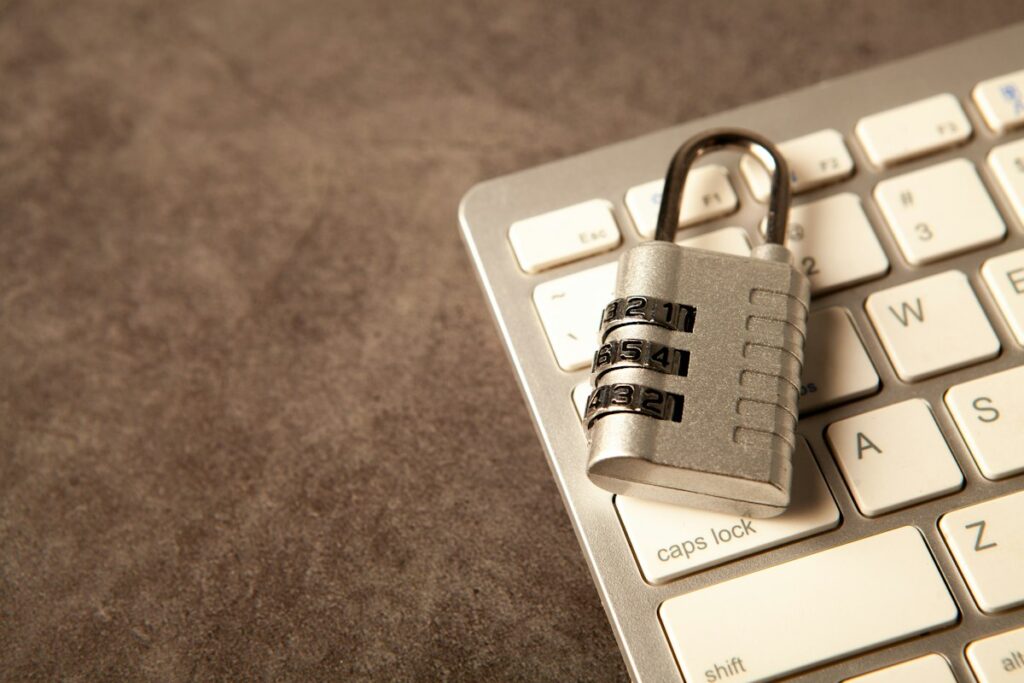
What passkeys are, how they replace passwords, how synced and device-bound passkeys differ, and what to do if you lose your phone.
Quick answer: A passkey is a secure sign-in method that replaces a password with a pair of cryptographic keys. The website stores a public key, while the private key stays on your device or password manager. You unlock it with your fingerprint, face or PIN. Passkeys resist phishing well, although they are not impossible to compromise.
Passwords are easy to reuse, guess and steal. Passkeys aim to remove that weak point by giving you nothing to type into a fake website. This guide explains how they work in plain language, compares them with passwords and one-time codes, and walks you through a safe way to start using them.
In this article
- What Is a Passkey?
- How Do Passkeys Work?
- Passkeys vs Passwords vs One-Time Codes
- Synced vs Device-Bound Passkeys
- What Are the Benefits?
- What Are the Downsides?
- How to Set Up a Passkey
- What If You Lose Your Phone?
- Should Businesses Use Passkeys?
- Frequently Asked Questions
- Final Thoughts
What Is a Passkey?
A passkey is a login credential based on the FIDO standards. Instead of remembering a secret and sending it to a website, your device proves that it holds the right private key. You usually confirm this with the same fingerprint, face scan or PIN that you use to unlock your phone or computer.
Your fingerprint or face is generally not sent to the website. It only unlocks the key on your device, and the site receives a signed response.
How Do Passkeys Work?
1. A key pair is created
When you make a passkey for an account, your device creates two linked keys. The website keeps the public key, and the private key stays with you.
2. The website sends a challenge
When you sign in later, the site sends a unique challenge to your device.
3. You unlock your device
You approve the request with your biometric or PIN.
4. Your device signs the challenge
The private key signs it, without leaving your device or password manager’s protected storage.
5. The website checks the signature
It uses the public key to confirm the response. If the signature matches, you are logged in.
Sara receives a realistic fake bank email and clicks the link. With a password, she might type her details into the fake site. With a passkey, there is nothing to type, and a passkey is tied to the real website address. The fake site cannot simply trick her into handing over a reusable secret.
Passkeys vs Passwords vs One-Time Codes
| Feature | Password | Text or app code | Passkey |
|---|---|---|---|
| You must remember it | Yes | No | No |
| Can be typed into a fake site | Yes | Yes | Designed to prevent this |
| Website breach reveals your secret | Possibly, if poorly stored | Usually no | Only a public key is stored |
| Speed | Slow if long | Slower | Often fast |
| Works on all sites | Almost all | Many | Still growing |
Synced vs Device-Bound Passkeys
- Synced passkeys: stored in a credential manager, such as Apple Passwords or Google Password Manager, and available across your devices. These are convenient, but your security then depends in part on that account.
- Device-bound passkeys: tied to one device, typically a physical security key. They offer stronger control and are often used for sensitive work, but losing the device can be a bigger problem.
Most people will start with synced passkeys. Employees with high-risk access, such as administrators, may benefit from hardware security keys.
What Are the Benefits?
- Phishing resistance: no reusable secret or code for you to hand over.
- Nothing to remember: no long passwords to create or reuse.
- Safer against breaches: the website holds only a public key.
- Faster sign-ins: a quick fingerprint or face scan is often all it takes.
- Less support work: businesses may deal with fewer password resets.
What Are the Downsides?
- Not universal: plenty of websites do not offer them yet.
- Device access: an attacker with your unlocked device, or your device and PIN, could get in.
- Account recovery: if a site allows an easy password or email fallback, that weaker route still exists.
- Ecosystem issues: moving between Apple, Google and Windows can be less smooth.
- Shared accounts: team logins need planning, and a shared password habit does not map neatly.
After adding a passkey, look at the account’s recovery options too. A strong passkey does not help much if an attacker can still reset the account through a weak email address or an old phone number.
How to Set Up a Passkey
- Update your phone or computer and your browser.
- Set a screen lock with a strong PIN or biometric.
- Protect the main account that stores your passkeys, such as Apple or Google.
- Go to the security settings of a site you use.
- Choose to create a passkey, and follow the prompts.
- Test by signing out and back in.
- Add a second passkey or recovery method before you remove your other login options.
What If You Lose Your Phone?
With synced passkeys, you can often recover them by signing into your credential manager on a new device. With a device-bound passkey on a single security key, you will need another registered key or the site’s recovery process. It is a good idea to prepare before anything goes wrong.
Ali drops his phone in the sea on holiday. His passkeys are synced through his password manager, and he has saved recovery codes at home. Once he has a new phone and signs back into his main account, he regains access. Without that preparation, he might have been locked out of several accounts for days.
Should Businesses Use Passkeys?
Often, yes, particularly for email, admin accounts and customer logins. Start with a pilot group, check which of your apps support passkeys, and write a clear recovery process so that help-desk staff cannot be fooled by a caller pretending to be an employee. Then widen the rollout in stages, as staff habits and older systems usually take the longest to change.
Set up a passkey on one account you use often, such as your Google or Microsoft account. Keep your existing recovery options for now, and test the sign-in once on another device.
Frequently Asked Questions
Are passkeys safer than passwords?
Generally, yes, especially against phishing and database breaches, although no login method is perfect.
Does the website get my fingerprint?
Generally no. Your biometric unlocks the key on your device, and it is not meant to be sent to the site.
Can I use passkeys on multiple devices?
Yes. Synced passkeys are designed for this, and some systems let you sign in using a nearby phone.
Do passkeys replace two-factor authentication?
Often they do, since they combine something you have with something you are or know. Check each site’s own rules.
What happens if a site is hacked?
The site holds your public key, which is of limited use to attackers without the private key.
Final Thoughts
- Passkeys replace typed passwords with cryptographic key pairs.
- They greatly reduce the risk from phishing.
- Protect your device, and your credential manager account.
- Set up recovery options before you need them.
Explore More on BTS Magazine
Sources: IBM: What is FIDO authentication?