What the Dell “hard drive not installed” message means, and how to fix it without losing your data.
Quick answer: When a Dell laptop says “hard drive not installed”, the system cannot see its storage drive. Start by unplugging all accessories and doing a hard reset. Then tap F12 at start-up and run the Dell pre-boot diagnostics. If the test passes, open the BIOS with F2 and check that the drive is listed, the boot order is correct, and the storage mode is right. If the drive is missing or fails the test, it may need reseating or replacing.
Few start-up errors are as worrying as being told your laptop has no hard drive. Your files, apps and Windows all live on that drive, so it is natural to assume the worst.
Often, though, the drive is fine. Leftover power, a changed BIOS setting or a loose connection can stop the laptop from detecting it. This guide follows Dell’s own troubleshooting order, starting with the steps that cannot harm your data.
In this article
- What does “hard drive not installed” mean?
- How do you fix “hard drive not installed” on a Dell laptop?
- What about your files?
- When should you replace the drive?
- Frequently asked questions
- Final thoughts
What does “hard drive not installed” mean?
The message means the laptop’s firmware cannot detect a storage drive at start-up. Dell groups it with similar messages such as “Hard Drive not Detected” and “No Hard Drive Detected”. It does not always mean the drive has died.
| Likely cause | How common | Can you fix it yourself? |
|---|---|---|
| Leftover power or a stuck state | Common | Yes, with a hard reset |
| Wrong BIOS storage or boot setting | Fairly common | Yes, with care |
| Loose drive connection | Occasional | Sometimes, if you are comfortable opening the laptop |
| Failed drive | Occasional | No, it needs replacing |
How do you fix “hard drive not installed” on a Dell laptop?
1. Disconnect external devices
Unplug USB drives, memory cards and docks. Keep only the charger connected. A connected device can confuse the boot process.
2. Perform a hard reset
Hold the power button for 10 seconds to turn the laptop off. Unplug the charger, and remove the battery if it is removable. Hold the power button for 15 to 20 seconds, then reconnect power and start the laptop. Dell lists this as an early step, and it does not affect your files.
3. Run the pre-boot diagnostics
Turn the laptop on and tap F12 repeatedly. Choose Diagnostics to run the SupportAssist Pre-Boot System Assessment, called ePSA on older systems. If the storage test fails, note the error code and validation code and look them up on Dell’s support site.
After a power cut, Aisha’s Inspiron showed “hard drive not installed”. She did a hard reset, and the drive appeared again on the next start-up. The diagnostics passed, so nothing needed replacing. A simple stuck power state had caused the scare.
4. Check the BIOS
Tap F2 when the Dell logo appears. Then check:
- Drive detection: Under System Information or Storage, see whether the drive is listed. If it is not, go to Fix 6.
- Boot sequence: Make sure the internal drive or Windows Boot Manager is at the top.
- Boot mode: Newer laptops should use UEFI, not Legacy.
5. Be careful with the storage mode
Some Dell laptops have a SATA or storage operation setting with options such as AHCI and RAID On. Dell advises changing it only if the drive is not detected or you are doing a clean Windows install. Changing it on a laptop that already has Windows installed can cause an “Inaccessible Boot Device” blue screen. If you changed it recently, switching it back can fix the problem.
Take a photo of each BIOS screen before you change anything. If a change makes things worse, you can put every setting back exactly as it was.
6. Reseat the drive
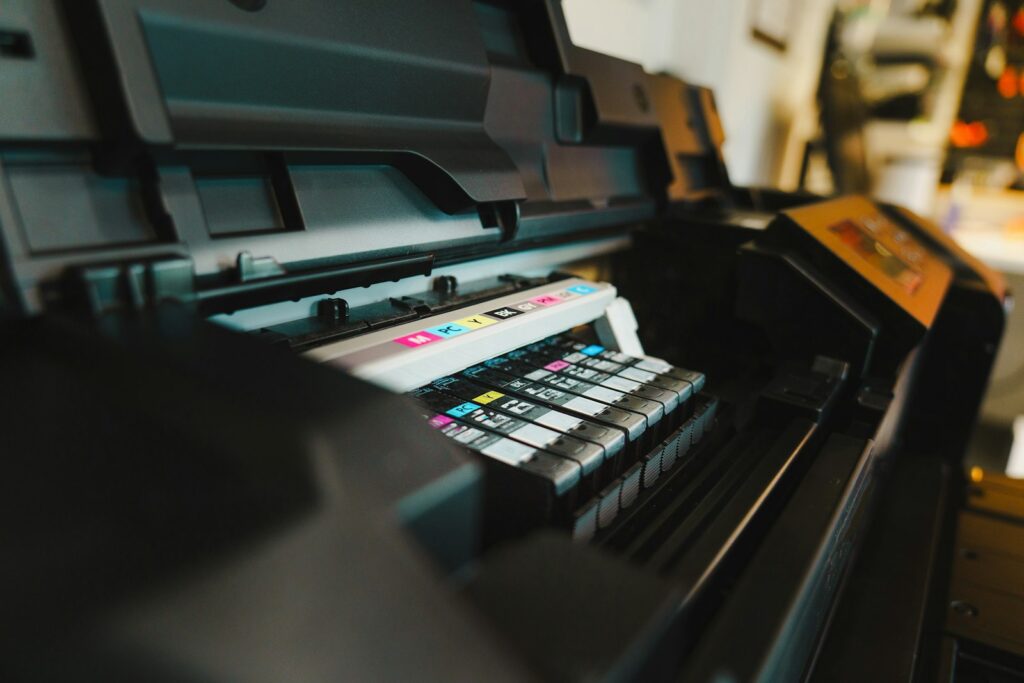
If you are comfortable opening the laptop, follow the service manual for your model. Shut down, unplug the charger, and ground yourself on unpainted metal. Remove the drive, check the connector for dust, and reseat it firmly. M.2 SSDs sit at about a 30 degree angle before you press them down and tighten the screw. If you are not confident, let a technician do it.
7. Update the BIOS once it starts
If the laptop starts after these steps, update the BIOS and drivers through SupportAssist to reduce the chance of the error coming back.
What about your files?
If the drive is detected again, back up your important files straight away, as some drive faults return. If the drive has failed, data recovery may still be possible, but it can be costly. Do not keep restarting a drive that clicks, grinds or fails the diagnostics, since that can make recovery harder.
Omar’s laptop showed the error after he dropped it. The diagnostics reported a storage failure. He stopped trying to start it and sent the drive to a recovery service, which saved his work files. He then installed a new SSD and restored his files.
When should you replace the drive?
- Diagnostics report a storage failure: Note the error code for Dell support.
- The drive is not listed in the BIOS after reseating: The drive or its connector may have failed.
- You hear clicking or grinding: Common with failing older hard disk drives.
- The laptop is out of warranty: A new SSD is often affordable and much faster than an old hard disk.
Check your warranty with the service tag on the bottom of the laptop before you buy a part. Dell may replace a failed drive at no cost if the laptop is still covered.
Set up an automatic backup to the cloud or an external drive. If your hard drive ever fails, a recent backup turns a crisis into a simple drive swap.
Frequently asked questions
What does “hard drive not installed” mean on a Dell?
It means the laptop cannot detect its storage drive at start-up. It can be caused by leftover power, BIOS settings, a loose connection or a failed drive.
How do I fix hard drive not installed on my Dell laptop?
Disconnect accessories, do a hard reset, run the F12 diagnostics, then check the BIOS for drive detection and boot order.
Will I lose my data?
Not necessarily. Many cases are fixed without touching your files. Back up as soon as the drive is detected again.
Should I change the SATA mode to AHCI?
Only if the drive is not detected or you are reinstalling Windows. Changing it on a working system can stop Windows from starting.
How do I run Dell diagnostics?
Tap F12 at start-up and select Diagnostics.
Can I replace a Dell laptop hard drive myself?
On many models, yes, using the service manual. If you are unsure, use a technician, and check your warranty first.
Final Thoughts
- Start with a hard reset and the F12 diagnostics, which are safe for your data.
- Check the BIOS for detection and boot order before changing storage settings.
- Change the SATA mode only with care, and undo it if you changed it recently.
- Back up your files as soon as the drive works again.
Explore More on BTS Magazine
- Dell Laptop Not Starting: 9 Fixes That Work
- Dell Laptop Touchpad Not Working: Easy Fixes
- How to Check if a USB-C Port Is Not Working
- Motherboard Repair: Common Problems and Easy Fixes