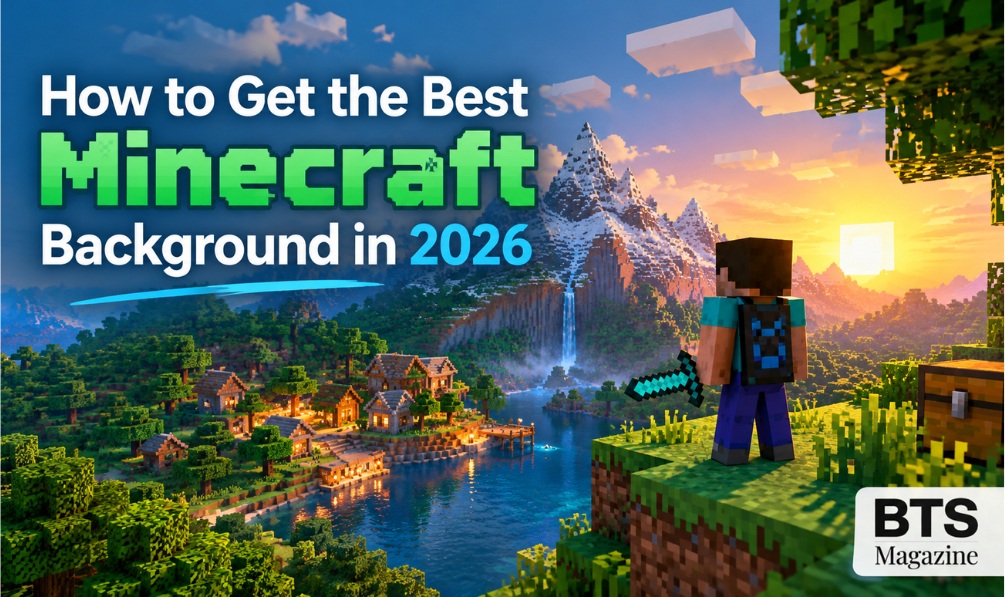
Choosing the right Minecraft background can make your gaming setup, desktop, phone, or website look much better. Whether you enjoy peaceful landscapes, glowing caves, pixelated forests, or dramatic scenes featuring your favorite mobs, the right background helps you bring the world of Minecraft into your everyday digital life.
In 2026, players have plenty of options for finding Minecraft wallpapers and backgrounds. You can choose official artwork, fan-made designs, screenshots from your own world, or custom images created to match your style. The best choice depends on your device, preferred resolution, and the type of Minecraft scenery you enjoy.
This guide explains what a Minecraft background is, why it matters, where to find one, and how to choose a high-quality image without wasting time on blurry or poorly sized wallpapers.
What Is a Minecraft Background?
A Minecraft background is an image inspired by Minecraft that you can use as desktop wallpaper, a phone background, a gaming profile banner, a website image, or a video thumbnail. It may show the game’s block-based landscapes, characters, buildings, animals, or creative structures.
Minecraft is an open-world sandbox game created by Mojang Studios. Its open-ended gameplay allows players to explore environments, gather resources, build structures, and create their own adventures.
For more information about Minecraft’s origins, gameplay, and development, visit its Wikipedia article.
Common types of Minecraft backgrounds include:
- Landscape Backgrounds: Beautiful Minecraft scenery featuring towering mountains, lush forests, vast oceans, sandy deserts, and colorful sunsets.
- Character backgrounds: Steve, Alex, and other familiar Minecraft characters.
- Mob wallpapers: Creepers, Endermen, zombies, skeletons, and friendly animals.
- Building backgrounds: Castles, modern houses, villages, and impressive player-created structures.
- Pixel art backgrounds: Creative designs inspired by Minecraft’s distinctive block-based appearance.
- Minimalist wallpapers: Simple images with a few blocks, characters, or recognizable game elements.
Some backgrounds use actual in-game screenshots, while others are illustrations or digital artwork inspired by the game.
Why Is a Minecraft Background Important?
A wallpaper might seem like a minor choice, but it can make your device look more attractive and reflect your personal style. For Minecraft fans, it is also a simple way to express their interests and personalize their gaming environment.
1. Personalize Your Gaming Setup
Your desktop or laptop background is often one of the first things you see when you start your computer. A Minecraft wallpaper featuring your favorite biome or a memorable building can make your setup feel more personal.
For example, a player who enjoys exploring mountains might choose a snowy landscape. Players who enjoy designing modern homes may choose a background featuring stylish houses or creative architectural builds.
2. Create a Consistent Gaming Theme
A matching background can help connect your desktop wallpaper, gaming profile, social media banner, and streaming layout.
Choose images with similar colors and visual styles to create a consistent look. Green forests, blue oceans, and warm sunset scenes work well for nature-focused themes.
3. Improve the Appearance of Your Device
A high-quality Minecraft background can make a desktop, tablet, or phone look more attractive. However, the image should match your screen’s resolution and aspect ratio.
An image that is too small may appear blurry, while an image with the wrong proportions may be stretched or cropped.
4. Support Creative Projects
Minecraft backgrounds can also be useful for digital projects, such as gaming blogs, YouTube thumbnails, presentations, and community pages.
If you publish content online, select images that you have permission to use. Artwork being available on the internet does not automatically mean it is free for commercial use.
Key Features of the Best Minecraft Background
Not every Minecraft wallpaper offers the same quality. Before choosing one, consider these important features.
High Resolution
Resolution affects how clear an image looks on your screen.
Common options include:
- 1920 × 1080 pixels: A popular choice for Full HD desktop displays.
- 2560 × 1440 pixels: Suitable for many QHD monitors.
- 3840 × 2160 pixels: A 4K option for compatible displays.
- 1080 × 1920 pixels: A common portrait format for phone wallpapers.
Choose a resolution that matches your device whenever possible. A larger image can be useful for high-resolution screens, but the correct proportions are equally important.
Attractive Colors and Lighting
The best Minecraft background should look good without making your screen feel crowded.
Consider these styles:
- Bright daytime scenes for a cheerful appearance.
- Dark caves and nighttime landscapes for a dramatic theme.
- Sunset scenes for warm colors.
- Snowy mountains for a cool, peaceful look.
- Neon or fantasy-inspired designs for a more modern gaming setup.
A Suitable Composition
Composition refers to how the elements are arranged within an image.
If you want a desktop wallpaper, look for a background with enough empty space for desktop icons. For a phone, a portrait image with the main subject near the center may work better.
For banners and thumbnails, choose a composition that leaves room for text without covering the main subject.
A Clean, High-Quality Image
Avoid wallpapers with visible compression, unwanted watermarks, distracting text, or unclear details. If you prefer a realistic in-game appearance, look for screenshots that preserve Minecraft’s recognizable visual style.
How to Get the Best Minecraft Background in 2026
Finding a suitable Minecraft background is straightforward when you know what to look for. Follow these steps to choose an image that fits your device and preferences.
Step 1: Decide Where You Will Use It
First, determine the purpose of your background.
- Desktop wallpaper: Choose a landscape image with a wide aspect ratio.
- Phone wallpaper: Look for a vertical image that fits your screen.
- Tablet background: Select a high-resolution image that works with your display’s proportions.
- Gaming banner: Choose a wide composition with enough room for text.
- Blog or thumbnail image: Make sure the image suits the content and follows the platform’s dimensions.
Knowing your intended use helps you avoid downloading an image that needs extensive editing.
Step 2: Choose Your Favorite Minecraft Theme
Think about the part of Minecraft you enjoy most.
If you love exploration, consider forests, mountains, caves, or ocean monuments. If you enjoy building, search for impressive houses, castles, cities, or creative-mode structures.
You might also prefer a background featuring a Creeper, an Enderman, or a peaceful scene with sheep and other animals.
Choosing a specific theme makes it easier to find an image that feels right for you.
Step 3: Search for High-Quality Images
Use descriptive search terms rather than searching only for Minecraft background.
For example, try:
- Minecraft background 4K
- Minecraft forest wallpaper HD
- Minecraft sunset desktop wallpaper
- Minecraft phone wallpaper 1080 × 1920
- Minecraft castle background
- Minecraft pixel art wallpaper
You can explore official Minecraft websites, reputable wallpaper platforms, and creator portfolios. Always review the image source and its usage terms before downloading or publishing it.
Step 4: Check the Resolution and Aspect Ratio
Before downloading, compare the image dimensions with your screen.
For example, a 1920 × 1080 wallpaper has a 16:9 aspect ratio and fits many widescreen monitors. A 1080 × 1920 image has a 9:16 aspect ratio and is more suitable for a vertical phone display.
If your image is smaller than your screen, enlarging it may reduce sharpness. If the proportions do not match, your device may crop important details.
Tip: Use your device’s display settings to check its resolution before choosing a wallpaper.
Step 5: Preview the Image Before Applying It
Open the image and check whether the important details remain visible at your screen size.
Look for:
- Blurry edges or pixelation.
- Cropped characters or structures.
- Colors that appear too dark.
- Distracting elements behind desktop icons.
- Watermarks or unwanted text.
A wallpaper that looks attractive in a small preview may not look as good when displayed across a large monitor.
Step 6: Download and Set Your Background
Once you have selected the image, download it from a trusted source.
On Windows, right-click the image file and select the option to set it as your desktop background. You can also open Settings → Personalization → Background to choose an image and adjust how it fits the screen.
On a phone, open the image in your gallery or wallpaper settings and select the option to use it as your wallpaper. The exact steps depend on your device and operating system.
Step 7: Try a Custom Minecraft Background
If you cannot find a design you like, create your own using a screenshot from your Minecraft world or a custom illustration.
You could feature a house you built, a mountain base, a village at sunset, or a carefully designed garden.
For a polished result, use an image editor to crop the image, adjust brightness, and resize it to your screen dimensions. If you use screenshots or artwork from other creators, respect their permissions and licensing requirements.

Where Can You Find Minecraft Backgrounds?
Several types of sources can help you discover suitable wallpapers.
Official Minecraft Resources
Official Minecraft websites and promotional materials are useful starting points for recognizable game artwork and visual references. Check the relevant usage guidelines before reusing official images, particularly for commercial projects.
Wallpaper Websites
Wallpaper platforms offer many designs in different resolutions and styles. Before downloading, check image quality, file safety, attribution requirements, and licensing terms.
Avoid suspicious download buttons, unexpected software installers, and websites that request unnecessary personal information.
Gaming Communities
Minecraft communities often share screenshots, builds, and fan artwork. These can be excellent sources of inspiration, especially when you want something different from common wallpapers.
However, ask the creator for permission when required, and do not assume that community artwork is free to reuse.
Your Own Minecraft Screenshots
Creating a background from your own game is one of the easiest ways to get a personalized result.
Build or visit a location you love, position the camera carefully, and capture a screenshot. You can then crop it to match your monitor or phone.
This approach gives your wallpaper a personal connection to your own Minecraft adventures.
Common Mistakes to Avoid
When searching for a Minecraft background, watch out for these common problems:
- Choosing a low-resolution image: It may look blurry on a large screen.
- Ignoring screen proportions: The device may stretch or crop the image.
- Using cluttered designs: Too many visual elements can make desktop icons difficult to see.
- Downloading from suspicious sites: Unknown files and installers can put your device at risk.
- Ignoring copyright: Images found online may have restrictions on commercial use.
- Forgetting mobile cropping: Phone interfaces may cover parts of the wallpaper with icons or widgets.
Taking a few moments to check these details can help you avoid problems later.
FAQs About Minecraft Backgrounds
1. What is the best Minecraft background in 2026?
The best Minecraft background depends on your preferences and device. A high-resolution landscape, an original screenshot, or a clean pixel art design can all be good choices. Select an image with suitable dimensions, attractive colors, and enough detail for your screen.
2. Where can I download Minecraft backgrounds for free?
You can look for free backgrounds on reputable wallpaper websites, official Minecraft resources where permitted, and creator communities. Always check the download source and licensing terms, especially if you intend to use the image commercially.
3. What resolution is best for a Minecraft desktop background?
For many desktop monitors, 1920 × 1080 pixels is a practical starting point. A 2560 × 1440 or 3840 × 2160 image may be more suitable for higher-resolution screens. Match the wallpaper to your monitor’s actual resolution whenever possible.
4. Can I use a Minecraft screenshot as my wallpaper?
Yes. You can capture a scene from your own Minecraft world and use it as a personal wallpaper. Adjust the crop and dimensions to fit your device. If you share or commercially publish the image, check the applicable game and platform usage rules.
5. How do I make a Minecraft background fit my screen?
Choose an image with an aspect ratio close to your display’s proportions. Then use your device’s wallpaper settings to select options such as Fill, Fit, Stretch, or Center, depending on what is available. Preview the result to make sure important details are not cut off.
6. Are Minecraft 4K backgrounds worth using?
A 4K Minecraft background can look sharp on a compatible 4K display. However, the benefit may be limited on a lower-resolution screen. Choose the resolution based on your device rather than assuming that the largest image is always the best.
7. Can I create my own Minecraft background?
Yes. Capture a screenshot of your favorite location in the game, then crop or edit it to fit your screen. You can also use image-editing software to adjust brightness and composition. Creating your own wallpaper is a simple way to make your gaming setup unique.
Conclusion
Finding the best Minecraft background in 2026 is about more than downloading the first attractive image you see. The right wallpaper should match your style, fit your screen, and offer clear details without unnecessary distractions.
Start by choosing a theme, checking the image resolution, and downloading from a reliable source. Whether you prefer a peaceful forest, an impressive castle, a dramatic cave, or a screenshot from your own world, there are plenty of ways to personalize your device.
Ready to refresh your screen? Explore different Minecraft background styles, compare their quality, and choose the one that makes your gaming setup feel like your own world.
Read also: Spend Mark Zuckerberg Money NealFun.org: How to Play the Game