If your iPhone home screen is filled with apps, finding the right one can quickly become annoying. That is where folders help. The iOS folder icon represents a group of apps stored together, making your Home Screen cleaner and easier to navigate.
But folders are not limited to basic organization. You can create folders for work, social media, travel, shopping, games, or anything else you use regularly. With newer iOS versions, you can also change how folders appear and customize your Home Screen for a more personal look.
This guide explains what the iOS folder icon means, why folders are useful, how to create and organize them, and what customization options are available.
What Is the iOS Folder Icon?
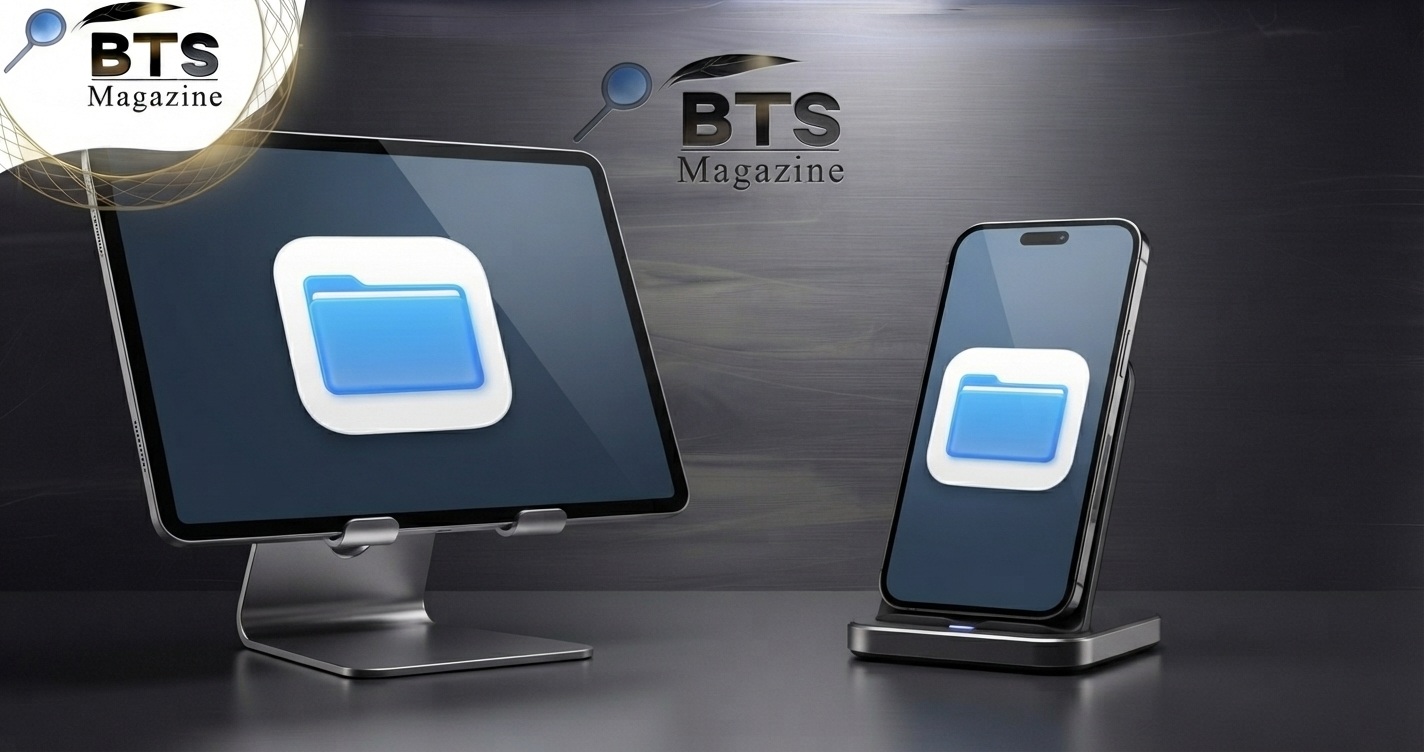
The iOS folder icon is the small folder-style symbol displayed on an iPhone or iPad Home Screen when multiple apps are grouped together.
When you create a folder, iOS automatically places selected apps inside it and displays a preview of the apps on the Home Screen. Tapping the folder opens it so you can access the apps inside.
For example, you could create a folder called Social and place Instagram, Facebook, Messenger, and other social apps inside it. Instead of taking up four separate Home Screen spaces, they are kept together in one location.
In simple terms, an iOS folder is a container for organizing related apps on your device.
For more background on Apple’s mobile operating system, you can also learn more about iOS on Wikipedia.
Why Is the iOS Folder Icon Important?
A well-organized Home Screen can save time every day. Instead of swiping through several pages to find an app, you can group similar apps together.
Folders are particularly useful when you have dozens or hundreds of installed apps.
Main benefits include:
- Better organization: Keep related apps in one place.
- Less Home Screen clutter: Reduce the number of individual app icons.
- Faster access: Find frequently used apps more easily.
- Cleaner appearance: Create a more organized iPhone layout.
- Better productivity: Separate work, personal, travel, and entertainment apps.
For example, someone who travels often could create a Travel folder containing Maps, airline apps, hotel apps, translation tools, and booking apps.
Key Features and Benefits of iOS Folders
The iOS folder system is simple, but it offers several useful features.
1. Group Similar Apps
The most obvious benefit is grouping apps based on their purpose.
Common folder ideas include:
- Social Media
- Work
- Finance
- Shopping
- Travel
- Photography
- Games
- Entertainment
- Education
Choose names that make sense to you rather than trying to follow a fixed system.
2. Reduce Home Screen Clutter
If your Home Screen contains many app icons, folders can make it look much cleaner.
Instead of having separate icons for every banking, shopping, or entertainment app, you can place related apps inside one folder.
3. Create Folders for Specific Tasks
You do not have to organize apps only by category.
You can also organize them around activities. For example:
Morning could contain Weather, Calendar, Reminders, and News apps.
Content Creation could contain Camera, Photos, video editors, design apps, and social platforms.
This type of organization can make your daily routine more efficient.
4. Move Folders Between Home Screen Pages
An iOS folder can be moved just like a normal app icon. This lets you place important folders on the Home Screen page where you use them most.
How to Create an iOS Folder Icon
Creating a folder is straightforward and does not require another app.
Step 1: Find the Apps
Locate two apps that you want to group together.
For example, you might choose two shopping apps.
Step 2: Touch and Hold an App
Press and hold one of the app icons until the Home Screen enters editing mode.
Depending on your iOS version, you may see options related to editing or rearranging the Home Screen.
Step 3: Drag One App Onto Another
Drag the selected app directly over another app.
iOS should automatically create a folder containing both apps.
Step 4: Rename the Folder
Open the folder and tap its name if you want to change it.
Use a short, descriptive name such as Shopping, Work, or Games.
Step 5: Add More Apps
While the Home Screen is being edited, drag additional apps into the folder.
You can continue adding related apps until the folder contains everything you need.
Step 6: Finish Editing
Tap Done when you have finished organizing the Home Screen.
Your new folder will now appear as an iOS folder icon.
How to Rename an iOS Folder
You can change a folder’s name whenever you want.
- Touch and hold the folder.
- Enter Home Screen editing mode.
- Open the folder.
- Tap the folder name.
- Enter your preferred name.
- Finish editing.
A clear name makes folders easier to identify at a glance.
Instead of naming a folder Apps, use something more specific such as Finance or Photography.
Can You Customize the iOS Folder Icon?
This is where things become slightly different.
Apple gives users several ways to customize the Home Screen, but the standard folder appearance is controlled by iOS. You generally cannot replace a normal folder with any custom folder image you want through the standard folder settings.
However, you can personalize the overall Home Screen experience through available iOS customization features, including app icon appearance, widgets, wallpapers, and Home Screen layouts, depending on your iOS version.
You can also use Apple’s Shortcuts app for certain custom Home Screen icon setups. Keep in mind that a shortcut icon is not the same thing as changing the actual system folder icon.
Common Mistakes to Avoid
Creating folders is easy, but poor organization can make them less useful.
Too Many Folders
If you create a separate folder for every small group of apps, finding something may become harder.
Try to keep your categories broad enough to remain useful.
Using Confusing Names
A folder named Stuff does not tell you much.
Use names such as:
- Business
- Health
- Travel
- Finance
- Shopping
Putting Unrelated Apps Together
A folder containing games, banking apps, and work tools may save space but does not improve organization.
Group apps based on how you actually use them.
Hiding Important Apps Too Deeply
Do not put your most-used apps several taps away.
Keep frequently used apps on the main Home Screen or somewhere they are easy to reach.
Expert Tips for Better iOS Folder Organization
A few simple habits can make your Home Screen much easier to manage.
Keep Your Most-Used Apps Outside Folders
If you open an app several times every day, consider keeping it directly on your Home Screen.
Folders are better for apps you use regularly but do not need every few minutes.
Use Short Folder Names
Short names are easier to read and take up less visual space.
Work is usually better than Work and Business Applications.
Review Your Folders Regularly
Every few months, check your folders and remove apps you no longer use.
You can also move frequently used apps out of folders if your habits have changed.
Combine Folders With Widgets
Widgets can display useful information without requiring you to open an app.
A calendar widget, weather widget, or reminders widget can work well alongside organized app folders.
Use App Library When Appropriate
If you do not want every app visible on your Home Screen, Apple’s App Library can help organize installed apps automatically.
This can be useful if you prefer a minimal Home Screen.
FAQs About the iOS Folder Icon
What does the iOS folder icon mean?
The iOS folder icon represents a collection of apps grouped together on an iPhone or iPad Home Screen. Tapping it opens the folder and displays the apps stored inside.
How do I create an iOS folder?
Touch and hold an app, then drag it over another app. iOS will normally create a folder containing both apps. You can then rename the folder and add more apps.
Can I change the iOS folder icon?
The standard iOS folder appearance is controlled by the operating system. You cannot normally replace the system folder graphic with any custom image through the standard folder settings.
Can I customize my iPhone Home Screen?
Yes. Depending on your iOS version, you can customize elements such as app icon appearance, widgets, wallpapers, and Home Screen layouts. Shortcuts can also be used for certain custom icon setups.
How many apps can I put in an iOS folder?
The number and arrangement of apps a folder can display depends on the device and iOS version. If you have many apps, iOS organizes them across multiple folder pages.
Can I remove an app from a folder?
Yes. Touch and hold the folder or app to enter editing mode, then drag the app out of the folder and place it somewhere else on the Home Screen.
Are iOS folders useful for productivity?
Yes. Grouping work, calendar, finance, communication, and other productivity apps can reduce clutter and make frequently used tools easier to find.
Conclusion
The iOS folder icon is a simple but useful part of Apple’s Home Screen organization system. It lets you group related apps, reduce clutter, and create a layout that matches the way you use your iPhone.
For the best results, create folders around meaningful categories, use short names, and keep your most important apps easy to access. You can also combine folders with widgets, wallpapers, and other available Home Screen customization features.
A few minutes of organization can make your iPhone much easier to use every day.
Read also: Better Homes and Gardens Guide: Decor, Garden & Lifestyle Tips