
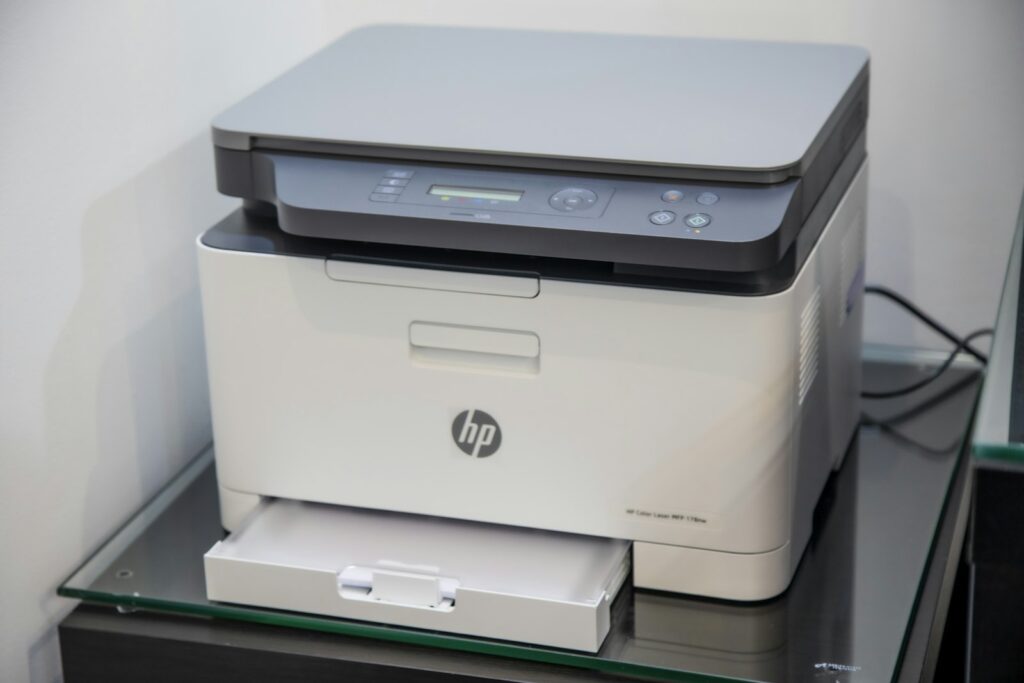
A practical checklist for HP printers that show offline, ignore print jobs or stopped working after an update.
Quick answer: If your HP printer is not working, restart the printer, computer and router, then check that the printer is on the same Wi-Fi network as your computer. In Windows, open the print queue, cancel stuck jobs and make sure “Use Printer Offline” is not ticked. If it still fails, restart the Print Spooler service, update the driver from HP, and use the HP Smart app to check for firmware updates.
Most printer problems are not hardware faults. They are communication problems between your computer and the printer: a stuck job, a changed Wi-Fi network, an offline setting or a driver that an update has replaced.
Work through these fixes in order. Many people are printing again within a few minutes. The steps below are for Windows 11, with Mac notes where they differ.
In this article
- What is your HP printer doing?
- How do you fix an HP printer that is not working?
- Which tool should you use?
- When does an HP printer need a repair or replacement?
- Frequently asked questions
- Final thoughts
What is your HP printer doing?
| Symptom | Likely cause | Start with |
|---|---|---|
| Shows “Offline” | Network or offline setting | Fix 1, Fix 3, Fix 4 |
| Jobs sit in the queue | Stuck job or spooler | Fix 5 and Fix 6 |
| Prints blank or faded pages | Ink, cartridges or print head | Fix 9 |
| Stopped after a Windows update | Driver | Fix 7 |
| Not found in HP Smart | Network or setup | Fix 3 and Fix 8 |
How do you fix an HP printer that is not working?
1. Restart everything
Turn the printer off, restart your computer, and restart your Wi-Fi router if you print wirelessly. Wait for the router to reconnect fully, then turn the printer back on. This clears many temporary connection faults.
2. Check paper, ink and error lights
Look at the printer’s display or lights. A paper jam, empty tray, open door or empty cartridge stops printing, and the printer may not tell your computer why.
3. Check the connection
- Wi-Fi: The printer and the computer must be on the same network. A solid wireless light usually means it is connected, while a blinking or dark light means it has lost the connection.
- USB: Unplug the cable at both ends, check it for damage, and try a different USB port.
- Ethernet: Check the connectors and try another port on the router.
Aisha’s HP printer showed offline after her internet provider installed a new router. The printer was still looking for the old network. She used the printer’s wireless setup on its control panel to join the new network, and it came back online.
4. Set the printer back online
Go to Settings > Bluetooth & devices > Printers & scanners, select your HP printer and choose Open print queue. Open the Printer menu at the top. If Use Printer Offline is ticked, untick it. On a Mac, open Printers & Scanners in System Settings, select the printer and click Resume if it is paused.
5. Clear the print queue
In the same print queue window, cancel all documents. A single stuck job can block everything behind it.
6. Restart the Print Spooler
Press Start, type Services and press Enter. Find Print Spooler, right-click it and choose Restart. The spooler is the Windows service that manages print jobs, and restarting it clears jobs that will not cancel.
7. Update or reinstall the driver
Go to HP’s support site, enter your printer model, and download the latest driver. If the printer stopped working after an update, remove it from Printers & scanners, restart, and add it again with the new driver.
8. Use HP Smart to update the firmware
Open the HP Smart app on your computer or phone, select your printer and check for printer updates. HP Smart can also help add the printer again if Windows cannot find it.
Set your printer to use a fixed IP address, also called a reserved address, in your router settings. Many “offline” problems happen because the router gives the printer a new address after a restart, and the computer keeps looking at the old one.
9. Fix blank or faded prints
Check ink levels in HP Smart. Remove and reseat the cartridges, and make sure any protective tape is removed from new ones. Run the print head cleaning tool from the printer menu or HP Smart, but avoid running it many times in a row, since it uses ink.
10. Set it as the default printer
In Printers & scanners, select your HP printer and choose Set as default. If Windows is managing your default printer automatically, turn that option off so your HP printer stays selected.
Which tool should you use?
| Tool | Best for |
|---|---|
| Windows print queue | Clearing jobs and the offline setting |
| Services (Print Spooler) | Jobs that will not cancel |
| HP Smart app | Setup, ink levels and firmware updates |
| HP support site | Downloading the right driver |
| Printer control panel | Reconnecting to Wi-Fi |
A small office’s HP LaserJet stopped printing invoices every Monday morning. The queue was full of stuck jobs from Friday. Restarting the Print Spooler cleared them in seconds, and a fixed IP address on the router stopped the problem from returning.
When does an HP printer need a repair or replacement?
Grinding noises, repeated paper jams with no paper inside, or hardware error codes that return after a restart can point to a mechanical fault. Check your warranty with HP before paying for repairs. For older inkjet printers, compare the repair cost with the price of a new one, as repairs can cost more than the printer is worth.
Print a test page from the printer’s own control panel. If it prints, the printer works, and the problem is the connection or your computer. If it does not, the problem is inside the printer.
Frequently asked questions
Why does my HP printer say offline?
It has often lost the Wi-Fi connection, is set to use offline, or has a new IP address. Restart everything, check the network and untick Use Printer Offline.
How do I get my HP printer back online?
Open the print queue in Printers and scanners, untick Use Printer Offline, and make sure the printer and computer share the same Wi-Fi network.
How do I clear a stuck print job?
Cancel all documents in the print queue. If they will not clear, restart the Print Spooler service in Windows Services.
Why is my HP printer printing blank pages?
The cartridges may be empty, unsealed or blocked. Check ink levels, reseat the cartridges and run the cleaning tool.
Do I need HP Smart to print?
Not always, but it helps with setup, ink levels and firmware updates. Many printers also work with the standard Windows driver.
Why did my HP printer stop working after a Windows update?
The update may have changed the driver. Remove the printer, then add it again with the latest driver from HP.
Final Thoughts
- Restart the printer, the computer and the router first.
- Check that the printer and the computer are on the same network.
- Clear stuck jobs, untick Use Printer Offline and restart the Print Spooler.
- Use HP drivers and HP Smart to keep the printer up to date.
Explore More on BTS Magazine
- Print Screen Not Working in Windows 11: Fixes
- How to Find Your Wi-Fi Password on Windows 11
- Laptop Keyboard Not Working: Fixes for Windows 11
- Dell Laptop Not Starting: 9 Fixes That Work