
Three ways to reinstall Windows 11, from a gentle repair that keeps everything to a full clean install.
Quick answer: To reinstall Windows 11 without losing files, go to Settings > System > Recovery and select Reinstall now under Fix problems using Windows Update. It reinstalls your current version and keeps apps, files and settings. For a deeper fix, use Reset this PC and choose to keep or remove files. For a fully fresh start, do a clean install from a USB drive made with Microsoft’s Media Creation Tool.
Reinstalling Windows can fix crashes, slowdowns, broken updates and corrupted system files. It sounds drastic, but Windows 11 now includes repair options that keep your files and apps in place.
This guide explains three methods, from the least to the most disruptive, so you can choose the one that fits your problem. Back up important files before any of them, just in case.
In this article
- Which reinstall method should you use?
- What should you do before reinstalling?
- Method 1: How do you reinstall with Windows Update and keep everything?
- Method 2: How do you use Reset this PC?
- Method 3: How do you do a clean install from USB?
- What if Windows will not start?
- When is a reinstall worth it?
- What should you do after reinstalling?
- Frequently asked questions
- Final thoughts
Which reinstall method should you use?
| Method | Keeps files | Keeps apps | Best for |
|---|---|---|---|
| Fix problems using Windows Update | Yes | Yes | Corrupted system files, failed updates |
| Reset this PC (keep my files) | Yes | No | Persistent problems, slowdowns |
| Reset this PC (remove everything) | No | No | Selling or giving away a PC |
| Clean install from USB | No | No | Serious problems, new drive, fresh start |
What should you do before reinstalling?
- Back up your files to an external drive or cloud storage, even if you plan to keep them.
- Note your licence keys for paid apps such as Microsoft Office or design software.
- Save browser passwords by signing in to your browser account or exporting them.
- Check your Microsoft account password, as you may need it to sign in afterwards.
- Plug in your laptop so it does not run out of battery.
These steps take a few minutes and protect you if a reinstall goes wrong.
Method 1: How do you reinstall with Windows Update and keep everything?
Microsoft’s repair guide describes this option:
- Open Start > Settings > System > Recovery.
- Under Fix problems using Windows Update, select Reinstall now.
- Choose whether to restart automatically 15 minutes after installation, then select OK.
- Keep the PC plugged in and online while it downloads and installs.
It reinstalls the same version of Windows, repairs system files, and keeps your apps, files and settings. Try this first for most software problems.
Amina’s laptop started showing errors after a failed update, and the Start menu kept freezing. She used Reinstall now under Fix problems using Windows Update. After about an hour, Windows was repaired and all her apps and files were still there.
Method 2: How do you use Reset this PC?
- Go to Settings > System > Recovery.
- Next to Reset this PC, select Reset PC.
- Choose Keep my files or Remove everything.
- Choose Cloud download to get fresh Windows files from Microsoft, or Local reinstall to use files already on your PC.
- Review the summary and select Reset.
“Keep my files” removes apps and settings but keeps personal files. “Remove everything” wipes the PC, which is right before selling it. Cloud download needs an internet connection but avoids reusing damaged local files.
Before a reset, make a list of the apps you use, where to download them and any licence keys. “Keep my files” removes your apps, and having the list ready makes setting up again much faster.
Method 3: How do you do a clean install from USB?
- Back up all your files to an external drive or cloud storage.
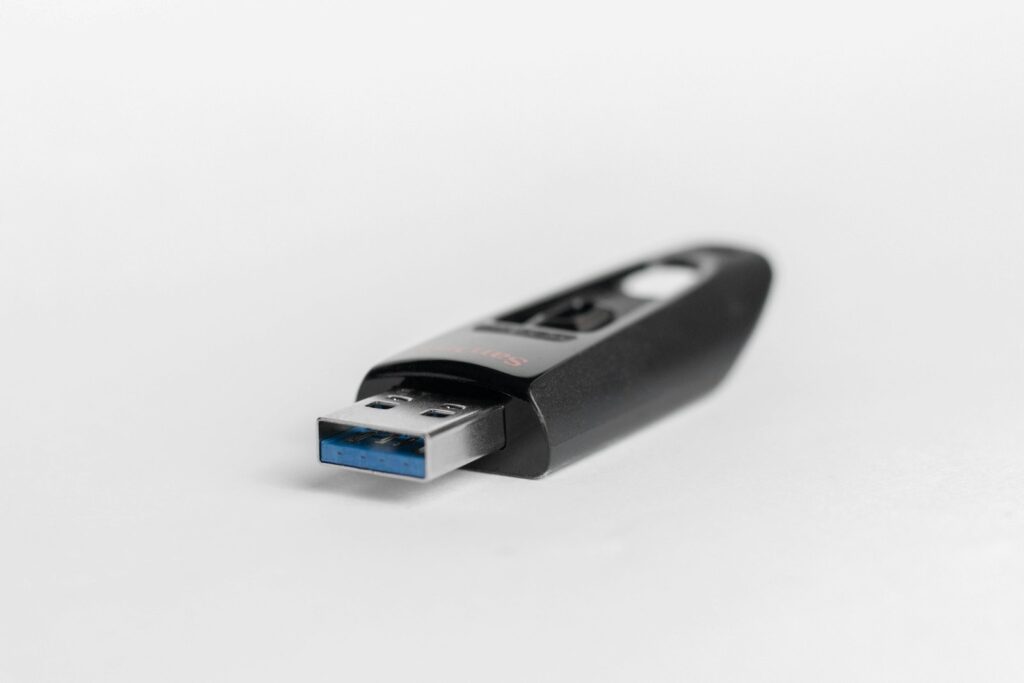
- On another PC if needed, download the Media Creation Tool from Microsoft and create a USB installer on an 8 GB or larger drive. See our Windows 11 ISO download guide.
- Plug the USB into your PC and restart. Open the boot menu, often F12, F11 or Esc, and choose the USB drive.
- Follow the setup screens and choose Custom install.
- Delete or format the old Windows partitions, then select the free space and continue.
- Sign in once installation finishes. Windows should activate automatically if the PC had Windows 11 before.
This gives the cleanest result but erases everything on the drive, so double-check your backup.
What if Windows will not start?
If Windows fails to start two or three times, it usually opens the recovery environment. From there, choose Troubleshoot, then Reset this PC, or use Advanced options for Startup Repair or System Restore. If even that fails, boot from a USB installer and choose Repair your computer, or do a clean install.
Omar’s PC stopped booting after a power cut during an update. After three failed starts, the recovery screen appeared. Startup Repair fixed the boot problem, and he did not need to reinstall at all.
When is a reinstall worth it?
- Frequent crashes or blue screens: Especially if they started after an update.
- Very slow performance: That does not improve after removing apps and startup programs.
- Broken Windows features: Such as a Start menu or Settings app that will not open.
- After malware: When you want to be sure the system is clean.
For a single faulty app or driver, try uninstalling it or using System Restore first. A reinstall is best when problems affect Windows itself.
What should you do after reinstalling?
- Run Windows Update until no more updates are found.
- Install drivers from your PC maker, especially for graphics and Wi-Fi.
- Reinstall your apps and restore your files.
- Turn on Windows Backup or another backup tool.
- Check your version with winver. See our guide to the latest Windows version.
Open Settings, then System, then Recovery, and look at the options available on your PC. Knowing where “Reinstall now” and “Reset this PC” are makes it much easier to act calmly if something goes wrong.
Frequently asked questions
Can I reinstall Windows 11 without losing my files?
Yes. Use Reinstall now under Fix problems using Windows Update, or Reset this PC with Keep my files.
Do I need a product key to reinstall Windows 11?
Usually not, if Windows 11 was activated on the PC before. It reactivates automatically online.
What is the difference between cloud download and local reinstall?
Cloud download gets fresh files from Microsoft, while local reinstall uses files already on your PC.
How long does reinstalling Windows 11 take?
Often around an hour, depending on your PC and internet speed.
Will reinstalling Windows remove viruses?
A full reset or clean install removes most malware, but restore files carefully from a clean backup.
How do I reinstall Windows 11 from USB?
Create a USB installer with the Media Creation Tool, boot from it, and choose Custom install.
Final Thoughts
- Try Reinstall now first, as it keeps apps, files and settings.
- Use Reset this PC for deeper problems, choosing to keep or remove files.
- Do a clean install from USB for a completely fresh start.
- Always back up your files before any reinstall.