

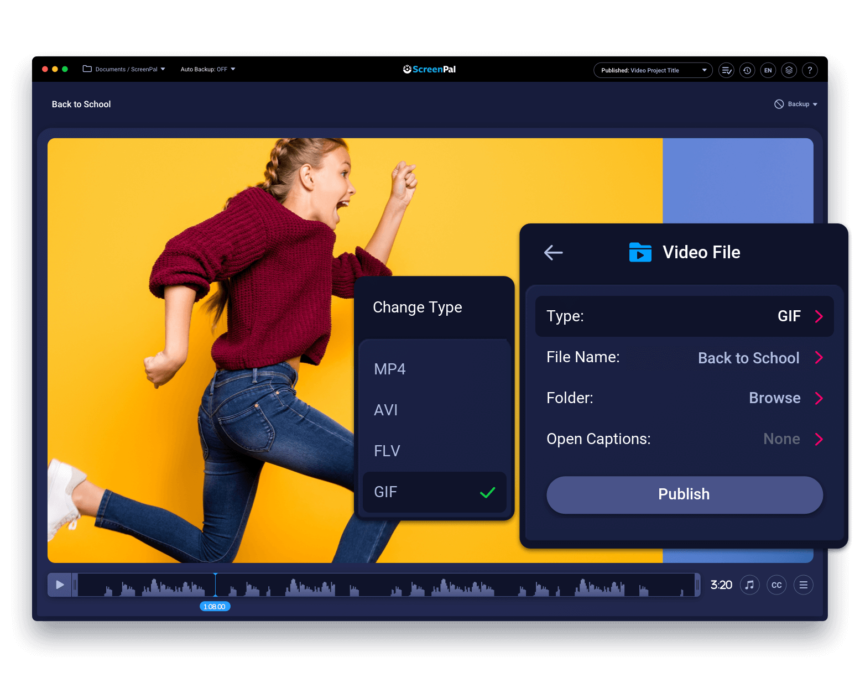
Video to GIF conversion is a simple way to turn a short video clip into a lightweight, looping animation that can be shared on websites, social media, chats, presentations, and online communities. Instead of asking someone to play a full video, you can show the most useful or entertaining part as a quick animation.
- What Does Video to GIF Mean?
- What Exactly Is a GIF?
- Why Convert a Video Into a GIF?
- How Video to GIF Conversion Works
- How to Convert Video to GIF Step by Step
- 1. Choose Your Video File
- 2. Upload the Video
- 3. Trim the Important Section
- 4. Choose the Output Size
- 5. Adjust the Frame Rate
- 6. Create and Download the GIF
- How Long Should a GIF Be?
- Why GIF File Size Matters
- How to Make a GIF File Smaller
- Why Colors Can Look Different
- Does a GIF Include Audio?
- Best Uses for Animated GIFs
- Video to GIF for Tutorials
- Video to GIF for Social Media
- Video to GIF for Websites
- GIF vs. Video: Which One Should You Choose?
- Common Video to GIF Mistakes
- Tips for Better-Looking GIFs
- Should You Use an Online Video to GIF Converter?
- When Should You Keep the Original Video?
- Final Thoughts on Converting Video to GIF
You do not need advanced editing skills to make one. Many online converters and editing tools let you upload a clip, trim the section you want, adjust the size, and export it as a GIF within a few steps.
Here’s the thing: making a GIF is easy, but making one that looks good and does not become unnecessarily large takes a little planning.
What Does Video to GIF Mean?
A Video to GIF converter takes frames from a video file and turns them into an animated GIF image. The result normally plays automatically and can repeat in a loop.
Unlike a regular video, a GIF does not work like a full video player. It is an image format that can store multiple frames, allowing those frames to appear one after another as an animation. GIF officially stands for Graphics Interchange Format.
This makes GIFs useful when you want to show a short action without asking the viewer to click a play button.
What Exactly Is a GIF?
GIF is a bitmap image format originally developed by CompuServe and released in 1987. One important feature of the format is its ability to store multiple images or frames inside one file, which makes animation possible.
GIF uses lossless compression, but it has a limited color palette. A GIF frame can use up to 256 colors, which is one reason GIFs often work better for simple graphics and animations than for highly detailed photographic scenes.
What’s interesting is that people now use the word “GIF” for many short looping animations, even when some of those animations are technically stored in newer video formats.
Why Convert a Video Into a GIF?
Sometimes a full video is simply more than you need.
Imagine you have a 30-second screen recording, but the useful action lasts only four seconds. Instead of sharing the entire recording, you can turn that important moment into a GIF.
A GIF can be useful for showing:
- A short reaction
- A software feature
- A quick tutorial
- A product movement
- A before-and-after change
- A game moment
- A funny scene
- A simple visual explanation
- A website interaction
The format works especially well when the viewer only needs to see a short repeated action.
How Video to GIF Conversion Works
A Video to GIF tool normally extracts a series of frames from the video you provide. Those frames are then arranged in order and stored as an animated GIF.
Most converters give you control over the beginning and end of the clip. Some also let you choose dimensions, aspect ratio, quality, or file size.
For example, Adobe Express currently allows users to upload a video, select the desired section, choose a file size, and pick portrait, landscape, or square formatting before creating a GIF.
The exact controls will depend on the converter you choose.
How to Convert Video to GIF Step by Step
The process is usually straightforward.
1. Choose Your Video File
Start by selecting the video that contains the moment you want to turn into an animation.
Common video files include MP4, MOV, AVI, and WebM, although supported formats vary between tools.
If you are using an online converter, check its upload rules first. Some services limit video length, resolution, or maximum file size.
2. Upload the Video
Open your chosen converter and upload the file.
Upload speed will depend on the size of your video and your internet connection. A short compressed clip will normally be easier to handle than a large high-resolution recording.
If your original video is very long, trimming it before uploading can also make the process simpler.
3. Trim the Important Section
This is one of the most important steps.
Do not convert a long video when you only need a few seconds. Move the start and end markers until only the useful part remains.
To be honest, shorter GIFs usually make more sense. They get to the point quickly and avoid making the viewer watch unnecessary frames again and again.
4. Choose the Output Size
Next, decide how large the GIF needs to be.
A full-resolution video may be 1920 × 1080 pixels or even larger. You usually do not need that resolution for a small animated image.
Reducing the width and height can significantly reduce the amount of image data that needs to be stored.
Choose dimensions based on where the GIF will appear rather than simply selecting the largest available option.
5. Adjust the Frame Rate
Video contains a sequence of frames. When creating a GIF, you may be able to control how frequently frames are included.
Using more frames can make movement look smoother, but it also adds more image information to the file. Using fewer frames can reduce file size, although cutting too many may make the animation appear jumpy.
The goal is balance.
For simple movements, you often do not need every frame from the original video.
6. Create and Download the GIF
Once everything looks right, start the conversion.
The tool will process the selected frames and create the animated image. Preview it before saving whenever that option is available.
Check that the animation begins at the right moment, ends naturally, and loops without an awkward pause.
How Long Should a GIF Be?
There is no single perfect length.
For reactions and memes, a few seconds may be enough. A tutorial GIF might need a little longer if it demonstrates several actions.
The main rule is simple: keep only what the viewer needs.
If a 15-second clip can be explained in five seconds, use the five-second version. Extra frames can increase file size without adding much value.
Why GIF File Size Matters
One common problem with Video to GIF conversion is unexpectedly large output files.
A source MP4 may be relatively compact because modern video formats use compression techniques designed specifically for moving video. GIF works differently and has limitations that can make animated files inefficient, particularly with detailed scenes. Wikipedia notes that newer formats are often preferred for video because of space and quality considerations.
Large GIFs can also take longer to upload, download, or display.
Keeping the animation short and reasonably sized is usually the best approach.
How to Make a GIF File Smaller
There are several practical ways to reduce GIF size.
Start by trimming unnecessary seconds. Then reduce the dimensions if the animation does not need to be large.
You can also lower the number of frames or simplify the source material. Scenes with lots of movement, detailed textures, and constantly changing colors can be harder to compress efficiently.
The trick is not to chase the smallest possible file. Aim for a file that looks clear while remaining practical to share.
Why Colors Can Look Different
Do not be surprised if your GIF looks slightly different from your original video.
GIF uses an indexed color system with a maximum palette of 256 colors for an individual image frame. That is much more limited than the color range available in modern photographic and video formats.
As a result, smooth gradients, shadows, skies, skin tones, or complex photographs may lose some detail or show visible color changes.
Simple illustrations, screen recordings, graphics, and flat-color animations often handle the limitation better.
Does a GIF Include Audio?
No. A normal animated GIF does not contain an audio track.
If sound is important to your content, exporting the clip as a video format such as MP4 will usually make more sense.
A GIF is better when the visual action can explain itself without speech, music, or sound effects.
This is why reaction animations and short demonstrations work so well in GIF form.
Best Uses for Animated GIFs
GIFs can be useful in many situations.
A customer support team might use one to show where a button is located. A blogger can demonstrate a short software action. A designer might show an interface animation without embedding a full video player.
They are also commonly associated with reactions and visual communication on messaging platforms and social networks. Wikipedia describes GIFs as being used for small animations and reactions that communicate emotions or feelings visually.
Short, obvious actions are usually the strongest candidates.
Video to GIF for Tutorials
One of the most practical uses of Video to GIF conversion is creating mini tutorials.
Suppose you are explaining how to change a setting inside an app. A screenshot may not clearly show the sequence, while a full video can feel unnecessary.
A five-second GIF can show the cursor moving, clicking the setting, and displaying the result.
This works well for help articles, documentation, product guides, and simple educational content.
Video to GIF for Social Media
GIF-style animations can also make social posts more expressive.
A short reaction, facial expression, product movement, or funny moment can communicate an idea quickly. Because the animation repeats, viewers may notice details they missed the first time.
Still, check the requirements of the platform where you plan to post. Social networks and messaging services can process animated files differently, and some may convert uploaded GIFs into their own video format.
Video to GIF for Websites
A GIF can be useful on a website when you need a short visual example, but file size deserves attention.
Large animated files may increase the amount of data a page needs to load. That is why you should avoid adding a huge GIF when a smaller version communicates the same message.
For longer, high-resolution, or highly detailed animations, a modern video format may be a more practical choice.
Use GIF when its simplicity genuinely helps the page.
GIF vs. Video: Which One Should You Choose?
Choose GIF when the content is short, visual, repetitive, and does not require sound.
Choose regular video when you need audio, high image quality, longer playback, detailed motion, or better efficiency for complex footage.
Here’s the thing: GIF and video are not really competitors. They solve different problems.
A five-second software action may work perfectly as a GIF. A five-minute tutorial obviously belongs in a regular video.
Common Video to GIF Mistakes
The biggest mistake is converting far more footage than necessary.
Another common problem is keeping the original video resolution even when the GIF will appear in a small space. This can create a much larger file than you actually need.
Some people also focus only on quality settings without checking the animation itself.
Before exporting, ask three simple questions: Is the important action clear? Is the animation short enough? Is the output size suitable for where I will use it?
Tips for Better-Looking GIFs
Good source material makes a difference.
Try to begin with a clear video that has stable framing and an obvious subject. Trim the beginning and end carefully so the animation feels intentional rather than randomly cut.
Avoid adding dozens of seconds just because the converter allows it.
If text appears inside the video, make sure your final dimensions are large enough for people to read it comfortably. A tiny GIF with unreadable text is not very useful.
Should You Use an Online Video to GIF Converter?
An online Video to GIF converter can be convenient if you only need a quick result and do not want to install editing software.
The workflow is often as simple as uploading, trimming, selecting an output size, and downloading the result. Adobe Express, for example, offers this type of browser and mobile conversion workflow.
However, think about privacy before uploading sensitive or confidential recordings to any third-party website. Read the service’s privacy and file-handling policies when the content matters.
When Should You Keep the Original Video?
Not every clip should become a GIF.
If your video contains important dialogue, music, detailed visuals, long instructions, or high-quality footage, keeping it as video will usually preserve more of the original experience.
The same applies when the clip is long.
Video to GIF conversion is most useful when you intentionally want to extract one small visual moment from a larger piece of footage.
Final Thoughts on Converting Video to GIF
Turning Video to GIF is useful when you want a short animation that communicates something quickly. Pick the right moment, trim unnecessary footage, choose sensible dimensions, and keep an eye on file size. A good GIF does not need to be long or complicated. It simply needs to show the action clearly.
If you want to understand the technical background of the format, including its history, color limitations, compression, and animation features, you can read the Wikipedia page about GIF. It gives useful context on why GIF works well for simple looping animations and why newer image and video formats may be better for some other situations.