

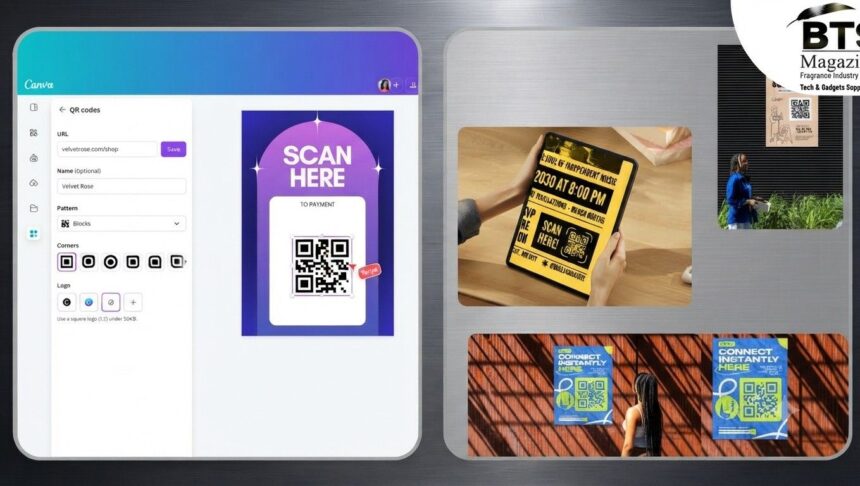
The Canva QR code generator is one of those tools that quietly makes your life easier. If you’ve ever needed a QR code for a flyer, a menu, or a business card, you know how annoying clunky QR websites can be. Canva folds the whole process into its design platform, so you can make a code and drop it straight into your project without jumping between tabs.
- What Is the Canva QR Code Generator?
- Why People Like Using Canva for QR Codes
- How the Canva QR Code Generator Works (Step by Step)
- Step 1: Open or Create a Design
- Step 2: Find the QR Code App
- Step 3: Paste Your Link
- Step 4: Generate and Add It
- Step 5: Download or Share
- Customization Options You Can Play With
- Free vs. Paid Features
- Real Use Cases for Canva QR Codes
- Tips for the Best Results
- Canva QR Code Generator vs. Other QR Tools
- Who Should Use This Tool?
- Common Questions About Canva QR Codes
- Final Thoughts
Here’s the thing — most people already use Canva for social posts or presentations. Adding a QR code takes about a minute. Let me walk you through how it all works.
What Is the Canva QR Code Generator?
The Canva QR code generator is a built-in feature inside Canva’s design editor. It lets you turn any link into a scannable QR code right on your canvas.
You type in a URL, hit generate, and Canva creates the code instantly. From there, you can place it anywhere in your design and adjust the size to fit.
To be honest, that’s the main appeal. You’re not exporting a code from one site and importing it into another. It all happens in one place.
Why People Like Using Canva for QR Codes
Canva is already a popular design tool, so adding a QR code feature just made sense. People trust it, and the interface feels familiar.
What’s interesting is that you don’t need any design experience. The QR code maker is simple enough for beginners but still useful for pros who want everything in one workflow.
How the Canva QR Code Generator Works (Step by Step)
Let me break down the process. It’s short, I promise.
Step 1: Open or Create a Design
Log into Canva and open any project — a poster, a card, whatever you’re working on. You can also start with a blank canvas.
Step 2: Find the QR Code App
Click on the “Apps” or “More” button in the left-hand toolbar. Search for “QR Code” and select the app.
This is where the actual QR code maker lives inside Canva.
Step 3: Paste Your Link
Drop the URL you want to share into the box. This could be your website, a menu page, a booking link, or a social profile.
Step 4: Generate and Add It
Hit the generate button. Canva creates your code and adds it to your design. Then you can drag it wherever you want.
Step 5: Download or Share
Once your design looks good, download it as a PNG, JPG, or PDF. Your QR code goes with it.
That’s really the whole thing. No sign-ups for a separate service, no confusing menus.
Customization Options You Can Play With
Now, the customization here is a bit different from dedicated QR platforms. Canva keeps it simple.
Resizing the Code
You can scale the QR code up or down to fit your layout. Just don’t shrink it so much that phones can’t scan it.
Placing It in Your Design
Drag and drop the code anywhere on your canvas. Pair it with text like “Scan to order” or “Follow us here” so people know what to do.
Color Adjustments
In some cases, you can tweak the color of the QR code to match your brand. A quick heads-up though — always keep strong contrast between the code and the background, or scanners might struggle.
Free vs. Paid Features
Here’s a common question: is the Canva QR code generator free?
The good news is the QR code feature itself is available on the free plan. You can create custom QR codes without paying a cent.
That said, Canva Pro unlocks extras like premium templates, more design assets, and background removal. These aren’t specific to QR codes, but they make your overall designs look sharper.
So for a basic free QR code tool experience, the free version does the job fine.
Real Use Cases for Canva QR Codes
This is where the tool really shines. QR codes fit into all sorts of projects. Here are a few practical ones.
Business Cards
Add a QR code that links to your portfolio, LinkedIn, or contact page. People scan it and save your details instantly. No typing needed.
Restaurant Menus
Loads of restaurants now use QR codes for digital menus. You can design the menu card in Canva and add the code in the same file.
Flyers and Posters
A flyer with a QR code lets people jump straight to your event page or sign-up form. It bridges the gap between print and online.
Marketing Campaigns
For marketing materials, a custom QR code can point to a landing page, a discount offer, or a video. It’s a clean way to track interest and drive clicks.
Product Packaging
Small businesses use QR codes on packaging to share how-to guides, reviews, or reorder links. Canva makes designing those labels easy.
Tips for the Best Results
A few small things make a big difference with QR codes. I learned some of these the hard way.
Test Before You Print
Always scan your code with your phone before sending anything to print. It’s a two-second check that saves you from wasted paper.
Keep It Big Enough
Tiny codes are hard to scan, especially on posters seen from a distance. Give the code some breathing room.
Use a Clear Call to Action
Don’t assume people know what the code does. A short line like “Scan for menu” removes the guesswork.
Mind the Contrast
Dark code on a light background works best. Fancy colors look nice but can confuse some scanners.
Canva QR Code Generator vs. Other QR Tools
There are plenty of standalone QR code makers out there. Some offer deep analytics and dynamic codes you can edit after printing.
The Canva QR code generator doesn’t go that deep. Its strength is convenience and design. You get your code inside a tool you already use for visuals.
If you need advanced tracking, a dedicated platform might suit you better. But for everyday design work, Canva is hard to beat.
Who Should Use This Tool?
Honestly, almost anyone. Small business owners, students, marketers, event planners, and content creators all benefit.
If you already lean on Canva design tools for your graphics, adding a QR code is a no-brainer. It keeps everything neat and in one spot.
Common Questions About Canva QR Codes
Let me answer a couple of quick ones people often ask.
Can I Edit the Link Later?
The QR code links to a fixed URL. If you need to change where it points, you’ll usually generate a new code. Canva’s built-in generator creates static codes.
Do the Codes Expire?
Static QR codes made in Canva don’t expire on their own. As long as the link they point to stays active, the code keeps working.
Final Thoughts
The Canva QR code generator is a simple, practical feature that fits right into your design flow. You get a free QR code tool, easy customization, and a straight path from idea to finished design.
For most everyday needs — menus, cards, flyers, campaigns — it’s more than enough. And since it lives inside Canva, you skip the hassle of juggling multiple apps.
If you want to learn more about how QR codes actually work behind the scenes, the Wikipedia page on QR codes is a solid starting point. Pair that background knowledge with the Canva QR code generator, and you’ve got everything you need to create custom QR codes that look great and scan smoothly.
Continue reading: Serlig — Yes, That’s Rod Serling. Here’s Why He Still Matters.