
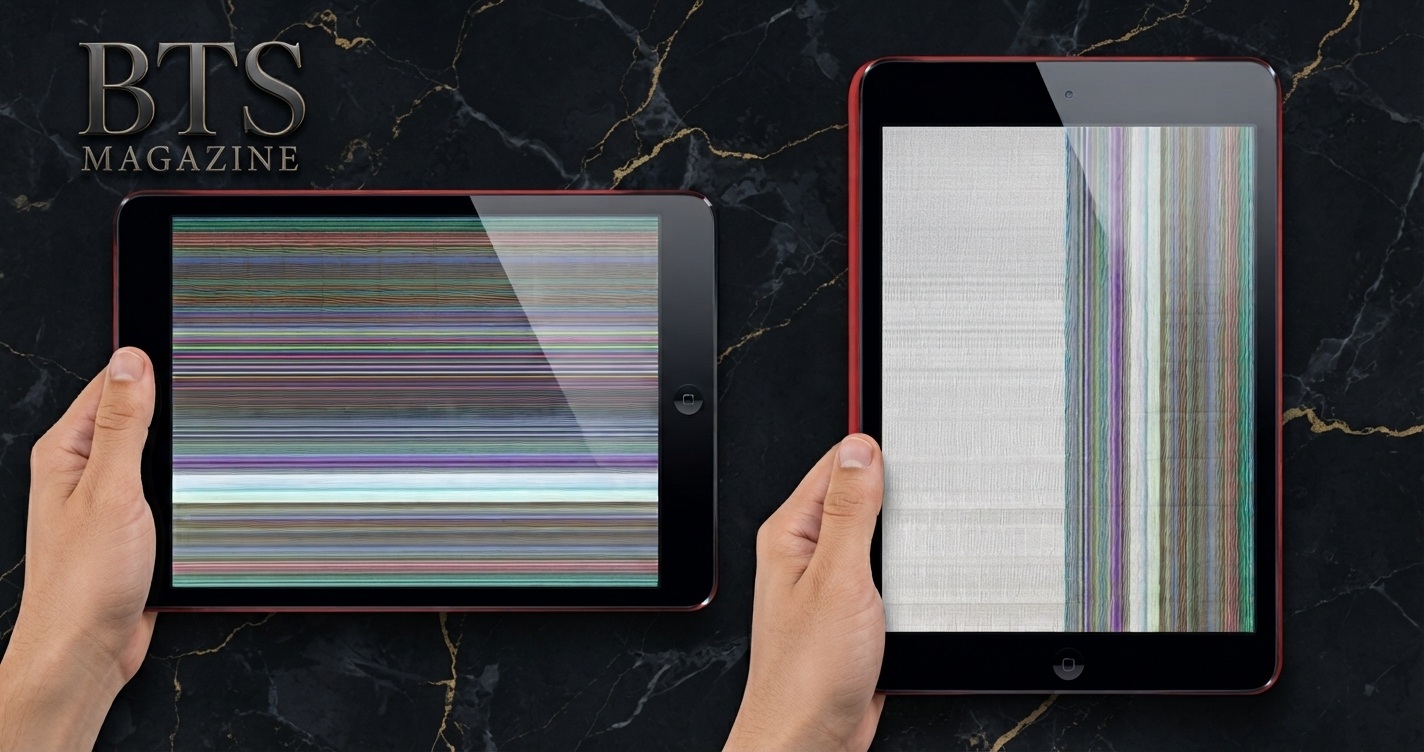
Your iPad works fine one minute, then the screen freezes, flickers, or goes completely black. It happens to millions of users, and most of the time the cause is simple. iPad screen issues rarely mean your device is broken beyond repair. Many problems come from software glitches, dirty screens, or minor settings you can fix in minutes.
This guide covers the seven most common iPad screen problems and the exact steps to fix each one.
What Are iPad Screen Issues?
iPad screen issues are any problems that affect how your display looks or responds. These include a frozen screen, unresponsive touch, flickering, dark spots, or a screen that won’t turn on.
Some issues are software-related and easy to solve. Others point to hardware damage, like a cracked panel or a failing connection inside the device. Knowing the difference saves you time and money.
Common examples of iPad display problems include:
- Touchscreen not responding to taps or swipes
- Screen flickering or showing flashing lines
- Black screen that won’t wake up
- Dead pixels or discolored spots
- Dim display even at full brightness
Why Addressing iPad Screen Issues Matters
A faulty screen affects everything you do on your iPad. You can’t type, read, draw, or watch videos when the display fails. This means work slows down and daily tasks become frustrating.
Small problems also grow worse over time. A minor flicker today can signal a loose cable that fails completely next month. Fixing issues early prevents costly repairs later. Catching a software glitch now can save you a screen replacement that costs hundreds of dollars.
7 Common iPad Screen Problems and Fixes
1. iPad Touchscreen Not Working
Your iPad screen ignores taps, or it registers touches you never made. This usually comes from a software freeze or a dirty screen.
How to fix it:
- Clean the screen with a soft, dry cloth.
- Remove any screen protector that may block sensors.
- Force restart your iPad by pressing the volume and power buttons together.
- Update to the latest iPadOS in Settings > General > Software Update.
If the touchscreen still fails, a hardware repair may be needed.
2. iPad Screen Flickering
Screen flickering shows up as flashing lines, blinking, or a jittery display. Software conflicts and brightness settings cause most cases.
How to fix it:
- Turn off Auto-Brightness in Settings > Accessibility > Display & Text Size.
- Restart the iPad to clear temporary bugs.
- Close any app running during the flicker.
- Update iPadOS to patch known display bugs.
Persistent flickering after these steps points to a loose display connector inside the device.
3. iPad Black Screen Fix
Your iPad turns on but the screen stays black. This often means the device is frozen, not dead.
How to fix it:
- Charge the iPad for at least 30 minutes with an original cable.
- Force restart the device to break the freeze.
- Listen for sounds or notifications that confirm the iPad still works.
- Connect it to a computer and check if it appears in Finder or iTunes.
If the screen stays black after charging and restarting, the display or battery likely needs service.
4. Frozen or Unresponsive Screen
The screen displays an image but won’t respond to any input. Apps or system files usually cause this lock-up.
How to fix it:
- Force restart the iPad to clear the freeze.
- Delete apps that crash often.
- Free up storage in Settings > General > iPad Storage.
A device with less than 10% free storage freezes more often. Keeping space open reduces these lock-ups.
5. Dead Pixels or Discolored Spots
Dead pixels appear as tiny black or colored dots that never change. They come from manufacturing defects or physical pressure on the screen.
How to fix it:
- Run a pixel-repair app that cycles rapid colors.
- Check the screen against a plain white and black background.
- Contact Apple if your device is under warranty.
Dead pixels are a hardware fault. Software can sometimes revive stuck pixels, but true dead ones require screen replacement.
6. Dim Screen at Full Brightness
The display stays dark even when brightness is set to maximum. Settings or a failing backlight cause this.
How to fix it:
- Turn off True Tone and Auto-Brightness in Settings.
- Disable Reduce White Point under Accessibility.
- Restart the iPad after changing settings.
If the screen stays dim, the backlight component may be failing and needs repair.
7. Cracked or Shattered Screen
A drop leaves cracks, spider lines, or a shattered glass surface. This is pure physical damage.
How to fix it:
- Apply a temporary screen protector to stop glass from spreading.
- Back up your data immediately in case the screen fails fully.
- Book a repair through Apple or a certified technician.
A cracked screen only worsens with use. Professional replacement is the only reliable fix.
Common Mistakes to Avoid
Many users make small errors that turn minor problems into major ones. Avoid these:
- Using water or harsh cleaners that seep into the screen and damage sensors.
- Ignoring software updates that fix known display bugs.
- Applying force to a frozen or cracked screen.
- Using cheap third-party chargers that harm the battery and display.
- Attempting DIY repairs on hardware without the right tools.
Skipping these mistakes keeps small issues small.
Pro Tips
These habits reduce iPad screen issues before they start:
- Install a tempered glass protector to guard against cracks and scratches.
- Restart your iPad weekly to clear temporary software bugs.
- Keep iPadOS updated for the latest display fixes.
- Store the device away from heat, since high temperatures cause flickering.
- Back up regularly so a screen failure never costs you data.
Consistent care extends the life of your display.
FAQs
Why is my iPad screen not responding to touch?
A frozen system or dirty screen usually causes an unresponsive touchscreen. Clean the display, remove any screen protector, and force restart the device. If the problem continues, update iPadOS. Persistent failure after these steps points to hardware damage that needs professional repair.
How do I fix an iPad black screen?
Charge the iPad for 30 minutes with an original cable, then force restart it by pressing the volume and power buttons. Most black screens are frozen, not dead. If the screen stays black after charging and restarting, the display or battery likely needs service.
Why does my iPad screen keep flickering?
Screen flickering usually comes from software conflicts or brightness settings. Turn off Auto-Brightness, restart the device, and update iPadOS. Close any app running during the flicker. If flickering continues, a loose internal display cable is the likely cause and requires repair.
Can I fix dead pixels on my iPad?
Sometimes. Stuck pixels may respond to a pixel-repair app that cycles colors quickly. True dead pixels are a hardware fault and cannot be fixed with software. If your iPad is under warranty, contact Apple for a screen replacement.
How much does an iPad screen repair cost?
Screen repair costs vary by model, ranging from about $150 to over $500 for newer iPads. AppleCare+ lowers this to a small service fee. Third-party shops charge less but may void your warranty. Always check pricing before booking.
Should I repair or replace my iPad?
Repair makes sense when the device is under three years old and only the screen is damaged. Replacement is smarter when repair costs approach half the price of a new iPad or when multiple parts fail together.
Conclusion
Most iPad screen issues come from software glitches, settings, or minor damage you can fix at home. Cleaning the screen, restarting the device, and updating iPadOS solve the majority of touchscreen, flickering, and black screen problems. Hardware faults like cracks and dead pixels need professional repair.
Try the fixes in this guide before paying for service. If the problem continues, book a certified repair to protect your data and your device. For official troubleshooting, updates, and repair information, Apple Support’s iPad guide is a useful reference.
Read also: What Is the CapCut Logo? Meaning, History & Design