
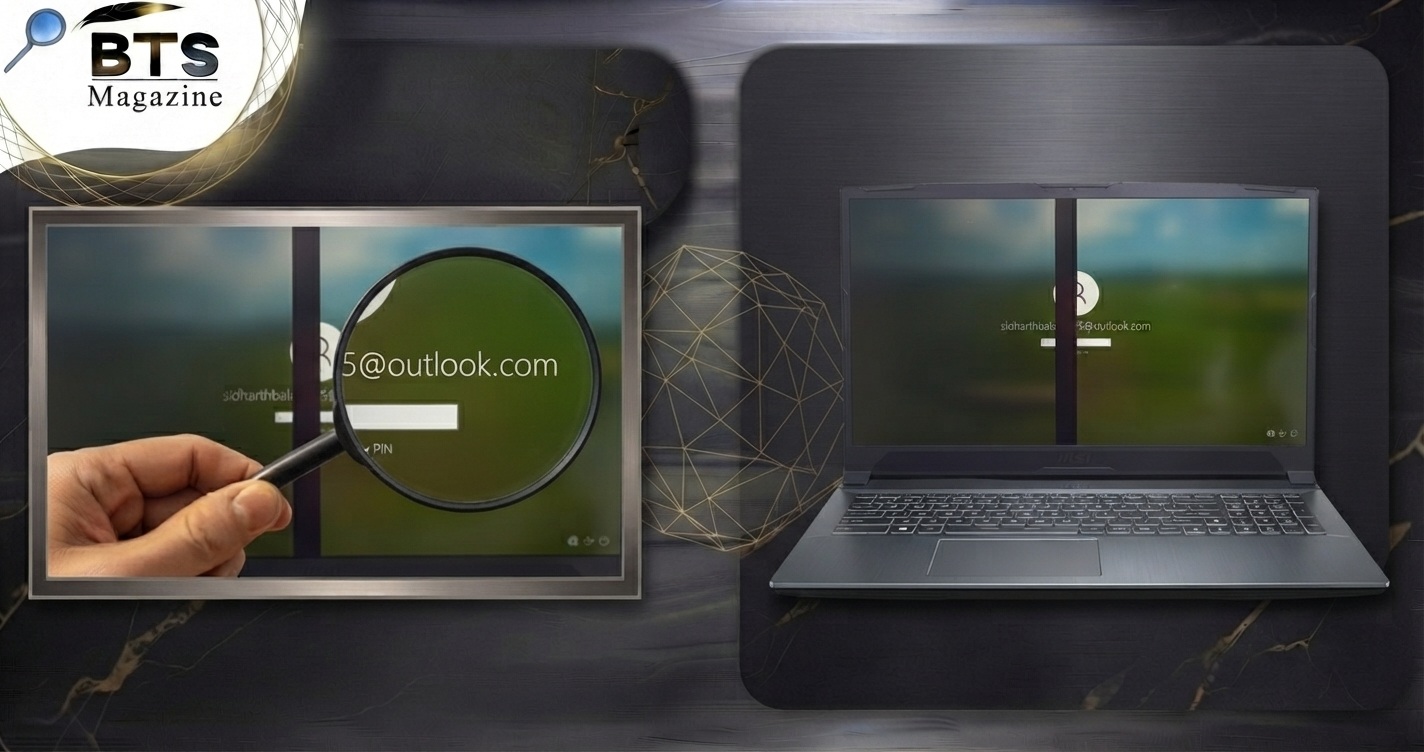
A black line on monitor displays is one of the most common screen faults, and it usually points to a single root cause. Sometimes the fix takes thirty seconds. Other times it signals hardware damage that needs a replacement part. Either way, you can diagnose the problem yourself before spending money.
This guide explains what causes the line, why it matters, and seven fixes you can apply in order. You’ll learn how to tell a software glitch from physical damage, which steps to try first, and when the panel is beyond repair.
What Is a Black Line on a Monitor?
A black line on a monitor is a solid or flickering streak that runs across the screen where pixels fail to display color. It appears as a vertical line on screen or a horizontal band. The line stays fixed in place regardless of what content you display.
The cause falls into two categories:
- Software or signal faults — driver errors, loose cables, or wrong display settings.
- Hardware faults — LCD pixel damage, a cracked panel, or a failed connector.
Signal faults are fixable at no cost. Hardware faults often require a repair or a new monitor. Knowing which one you face saves both time and budget.
Why a Black Line on Your Monitor Matters
A single line seems minor, but it points to a fault that tends to spread. What starts as one vertical line on screen can grow into multiple lines or a dead section of the panel within weeks.
Here is why it matters:
- It disrupts work. A line through a spreadsheet or dashboard causes errors and eye strain.
- It signals progressive damage. Pixel and connector faults rarely stay static.
- It affects downtime costs. In a multi-monitor setup, one failing display slows a full workstation.
For teams running many monitors across locations, one recurring fault often reveals a batch defect or a shared cable problem. Catching it early prevents repeat failures.
Key Causes and Types of Monitor Lines
Monitor display issues trace back to a handful of common sources. Identify the type first, then match it to the correct fix.
Common Causes
- Display cable fault — a loose, bent, or damaged HDMI, DisplayPort, or VGA cable.
- GPU driver problems — outdated or corrupted graphics drivers send bad signals.
- LCD pixel damage — a row or column of pixels fails inside the panel.
- Loose internal connector — the ribbon cable inside the monitor works loose.
- Physical panel damage — pressure or impact cracks the display layer.
Line Types
- Vertical lines usually point to a connector or panel fault.
- Horizontal lines often indicate a driver or refresh rate issue.
- Colored lines suggest a signal problem rather than dead pixels.
- Fixed black lines typically mean physical pixel damage.
This means the line’s direction and color narrow the cause before you touch a single setting.
7 Easy Ways to Fix a Black Line on Your Monitor
Work through these fixes in order. Start with the free, fast steps before opening any hardware.
1. Restart the Monitor and Computer
Power cycling clears temporary signal glitches. Turn off both the monitor and the computer, unplug the monitor for 60 seconds, then power everything back on.
This resets the display connection and fixes lines caused by a stuck frame or a minor software error. It works more often than most people expect.
2. Check and Reseat the Display Cable
A display cable fault is the most common fixable cause. Unplug the video cable at both ends, inspect the pins, and plug it back in firmly.
- Look for bent pins or frayed sections.
- Reseat the cable on both the monitor and the GPU.
- Swap in a different cable if you have one.
If the line disappears with a new cable, the old cable was the problem.
3. Test on a Second Device
Connect the monitor to a different computer or laptop. This step isolates the fault.
- Line appears on both devices — the monitor is faulty.
- Line disappears on the second device — the original computer or its GPU is the cause.
This test takes two minutes and tells you exactly where to focus next.
4. Update or Reinstall the GPU Driver
An outdated driver sends corrupted signals that produce lines. A clean GPU driver fix resolves this.
- Open Device Manager or your GPU control panel.
- Download the latest driver from the manufacturer’s site.
- Choose a clean install to remove corrupted files.
Restart after installing. Horizontal lines caused by software often vanish at this step.
5. Adjust Resolution and Refresh Rate
Wrong display settings create lines and flicker. Set the monitor to its native resolution and supported refresh rate.
- Right-click the desktop and open display settings.
- Select the recommended resolution.
- Match the refresh rate to the monitor’s spec, such as 60Hz or 144Hz.
A mismatched refresh rate is a frequent cause of monitor display issues on new setups.
6. Apply Gentle Pressure or Run a Pixel Fixer
For LCD pixel damage, two low-risk methods sometimes revive stuck pixels.
- Pressure method: Power off the monitor. Press a soft, damp cloth gently on the line. Turn the monitor back on while releasing pressure.
- Pixel fixer software: Run a tool that flashes rapid colors to unstick pixels.
These work only on stuck pixels, not permanently dead ones. Use light pressure to avoid further damage.
7. Open the Monitor and Reseat Internal Connectors
If earlier steps fail, an internal ribbon cable may be loose. This is an advanced fix that voids most warranties.
- Unplug the monitor and remove the back cover.
- Locate the ribbon cables connecting the panel to the board.
- Reseat each connector firmly.
Only attempt this if the monitor is out of warranty and you are comfortable with hardware. Otherwise, move to professional repair.
Common Mistakes to Avoid
These errors waste time or make the fault worse.
- Pressing too hard on the panel. Heavy pressure cracks the display and creates permanent damage.
- Skipping the second-device test. Without it, you cannot tell if the fault is the monitor or the computer.
- Buying a new monitor too early. A $10 cable often solves what looks like panel failure.
- Ignoring the warranty. Opening the case voids coverage that could fund a free repair.
- Updating drivers from unofficial sites. These installs introduce more faults, not fewer.
Avoiding these mistakes keeps your repair cheap and your data intact.
Expert Tips for Preventing Monitor Lines
Prevention costs less than replacement. Apply these practices across single and multi-monitor setups.
- Use quality cables. Certified HDMI and DisplayPort cables reduce display cable fault rates.
- Keep drivers current. Schedule quarterly GPU driver updates to prevent signal errors.
- Control heat. Overheating stresses panels and connectors, so keep vents clear.
- Handle with care. Transport monitors in padding to prevent pressure damage.
- Track failures by batch. In fleets, log which model and purchase date fails most.
For organizations running dozens of displays, a documented replacement standard cuts recurring downtime. Consistent hardware and cable specs prevent scattered, hard-to-trace faults.
Frequently Asked Questions
Can a black line on a monitor be fixed?
Yes, in most cases. A black line caused by a loose cable, driver error, or wrong settings is fixable for free. Restart the monitor, reseat the cable, and update the GPU driver first. Physical LCD pixel damage, however, usually requires a panel repair or replacement.
Why does my monitor have a vertical line?
A vertical line on screen usually points to a loose display cable, a failed internal connector, or LCD pixel damage. Test the monitor on a second device first. If the line appears everywhere, the panel or its connector is faulty and needs repair.
Is a black line on a monitor a hardware or software problem?
It can be either. Software causes include driver errors and wrong refresh rates, which you fix with settings. Hardware causes include cable faults and LCD pixel damage. Test the monitor on another computer to identify the source before spending on repairs.
Will updating drivers remove monitor lines?
Sometimes. A GPU driver fix removes lines caused by corrupted or outdated graphics software, especially horizontal ones. Download drivers only from the manufacturer’s official site and choose a clean install. If the line stays after updating, the cause is hardware, not software.
How do I know if my monitor is beyond repair?
Test it on a second device with a new cable. If the line persists across devices, cables, and driver updates, the panel has physical damage. At that point, weigh repair costs against a replacement, since new panels often cost close to a new monitor.
Does pressing on the screen fix a black line?
Light pressure can revive a stuck pixel, but it cannot fix a dead one. Power off first, use a soft damp cloth, and press gently. Hard pressure risks cracking the panel and creating permanent damage, so treat this as a last, careful step.
Conclusion: Fix the Line Before It Spreads
A black line on monitor displays almost always traces to one of five causes: a cable fault, a driver error, a settings mismatch, LCD pixel damage, or a loose connector. The fix follows the same order every time.
Start free and simple: restart, reseat the cable, and test on a second device. Move to driver updates and display settings next. Only open the hardware as a last resort, and only when the warranty allows it.
Your next step: run the seven fixes in order and stop at the one that clears the line. If the fault persists across cables, devices, and drivers, the panel is damaged and needs professional repair or replacement. For teams managing many displays, document which fix worked so you can spot batch failures early and keep downtime low.
Further Reading: Computer monitor – Wikipedia