
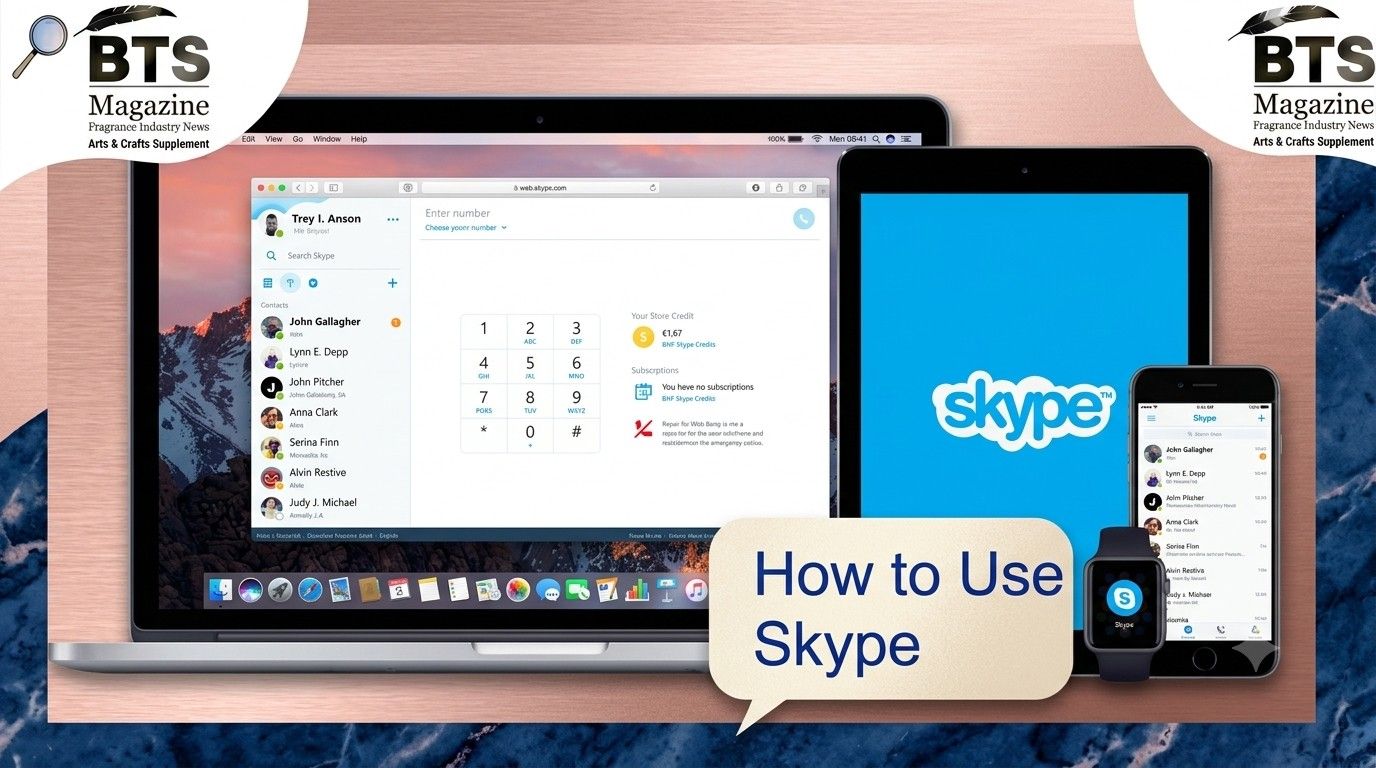
Learning how to use Skype is easier than most people think, and once you get the hang of it, you’ll wonder why you waited so long. Whether you want to call family across the world, hop on a work meeting, or just send a quick message, Skype has covered it for years. This guide walks you through everything step by step, in plain language.
Let’s get into it.
What Is Skype, Really?
Skype is a communication app that lets you make voice calls, video calls, and send messages over the internet. To be honest, it was one of the first apps to make free video calling feel normal for everyday people.
You can use it on your phone, tablet, or computer. All you need is an internet connection and an account.
A Quick Bit of Background
Skype launched back in 2003 and quickly became a household name. Microsoft bought it in 2011, and since then it has been tied closely to other Microsoft tools like Outlook and Teams.
What’s interesting is that “to Skype someone” actually became a verb people used in everyday speech. That’s how popular it got.
Why People Still Choose Skype
Here’s the thing — even with newer apps around, Skype still has loyal users. It works well for international calls, group chats, and screen sharing.
It’s a solid free video calling app that doesn’t ask for much to get started. That simplicity is a big part of its charm.
Key Features You’ll Actually Use
Before we get into setup, let me quickly run through what Skype offers. Knowing this makes the rest easier.
Voice and Video Calls
You can make a Skype video call with one person or a whole group. The video quality is decent, and calls between Skype users are free.
Instant Messaging
Skype chat lets you send text, emojis, photos, and files. It’s handy when you don’t feel like talking out loud.
Screen Sharing
During a call, you can share your screen. This is great for showing presentations, helping someone fix a tech issue, or teaching something visual.
Calling Phones
You can also call regular mobile and landline numbers. That part isn’t free, though — you’ll need Skype Credit or a subscription.
How to Use Skype: Setting Up Your Account
Alright, let’s get to the actual steps. Learning how to use Skype starts with creating your account, and it only takes a few minutes.
Step 1: Download the App
Head to the official Skype website or your device’s app store. Skype for PC, Mac, Android, and iPhone are all available.
Download the version that matches your device and install it.
Step 2: Create a Skype Account
Open the app and click “Create new account.” Your Skype account setup can use either your phone number or an email address.
If you already have a Microsoft account, you can just sign in with that. No need to make a new one.
Step 3: Set Up Your Profile
Add a profile picture and your name. This helps friends recognize you when they search for your account.
You can also set your status, like “Available” or “Away,” so people know when you’re around.
How to Add Contacts
You can’t call anyone until you’ve added them. Tap the search bar and type a name, email, or Skype username.
When you find the right person, send a contact request. Once they accept, you’re ready to call or message anytime.
How to Make a Skype Video Call
Now for the fun part. Open a conversation with your contact, then tap the video camera icon at the top.
The call starts ringing right away. When they pick up, you’ll see and hear each other. That’s really all there is to a Skype video call.
Making a Group Video Call
Want more people on the call? Create a group, add your contacts, and hit the video button. Skype lets you fit a good number of people into one call.
How to Send a Message on Skype
Skype chat is straightforward. Open a contact, type your message in the box at the bottom, and press enter.
You can attach files, photos, or even voice notes. It works a lot like any texting app you already know.
How to Make Voice Calls
If you don’t feel like being on camera, just tap the phone icon instead of the video one. It rings the same way, only without video.
Voice calls between Skype users are free, which makes them perfect for long chats.
Tips to Get the Most Out of Skype
A few small things can really improve your experience. These are the habits that separate casual users from confident ones.
Check Your Internet Connection
Skype relies on a steady connection. If calls keep dropping, a weak Wi-Fi signal is usually the reason.
Test Your Audio and Video
Before an important call, go into settings and test your mic and camera. It saves you from awkward “Can you hear me?” moments.
Use Skype Credit Wisely
If you often call phone numbers, a monthly subscription may be cheaper than paying per call. Compare the options before buying.
Keep the App Updated
Updates fix bugs and add features. Whether you use Skype for PC or your phone, keeping it current helps everything run smoothly.
How to Use Skype for Work
Plenty of people use Skype for meetings and remote work. You can share your screen, record calls, and chat with your team all in one place.
For bigger companies, Microsoft often points users toward Teams. But for smaller groups, learning how to use Skype still does the job nicely.
Common Problems and Quick Fixes
Sometimes things go wrong. If your call won’t connect, check your internet first.
If your camera isn’t showing, make sure Skype has permission to use it in your device settings. Restarting the app fixes a surprising number of issues too.
Frequently Asked Questions
Is Skype free to use?
Yes, calls and messages between Skype users are free. You only pay when calling regular phone numbers or landlines.
Do I need to download Skype to use it?
Not always. Skype for PC works in a web browser too, though the app usually gives a smoother experience.
Can I use Skype without a Microsoft account?
You’ll need some form of account, but you can sign up with just an email or phone number during your Skype account setup.
How many people can join a Skype video call?
Skype supports large group calls, so you can fit friends, family, or coworkers into a single Skype video call with room to spare.
Is Skype safe to use?
Skype uses encryption to protect your calls and chats. Like any app, though, only accept contact requests from people you actually know.
Final Thoughts
Once you know how to use Skype, staying connected becomes second nature. From setting up your account to making your first Skype video call, the whole process is beginner-friendly.
It remains a reliable free video calling app for personal chats and work alike. If you’re curious about its full history and how it grew over the years, you can read more on its Wikipedia page. Give it a try, and you’ll be calling loved ones in no time.
Continue reading: Women’s Long Winter Dress Coats: The Ultimate Guide to Staying Warm and Stylish